Note that most pages display the stored value of each parameter. When changes are made to any setting, the stored value will update, but the device must be rebooted before they will take effect. Click the "reboot now" link to force the reboot cycle.
| General Settings | |
 Name/Description: The name can be used to easily identify the device on its web page and within software applications that support extraction of this field. The maximum length of the text is 32 characters. If no description is specified, the field will default to IPSpeaker2046f9nnnnnn where 2046f9nnnnnn is the MAC address of the device. When used with a SIP application, this field is interpreted as the SIP display name. Name/Description: The name can be used to easily identify the device on its web page and within software applications that support extraction of this field. The maximum length of the text is 32 characters. If no description is specified, the field will default to IPSpeaker2046f9nnnnnn where 2046f9nnnnnn is the MAC address of the device. When used with a SIP application, this field is interpreted as the SIP display name. |
| Location: Text field used to identify the location of the device. |
| Latitude: Numeric field used to identify the latitude of the device. Acceptable values are -90.000000 to 90.000000. Positive numbers indicate locations north of the equator. See latlong.net to get latitude from a street address. |
| Longitude: Numeric field used to identify the longitude of the device. Acceptable values are -180.000000 to 180.000000. Positive numbers indicate locations east of the prime meridian. See latlong.net to get longitude from a street address. |
| Altitude: Numeric field used to identify the altitude of the device, in meters, from mean sea-level. Positive numbers indicate locations above mean sea-level. |
| Boot Beep Volume: Controls the loudness of the beep signal heard when the device has finished booting. 1 is softest, 8 is loudest. A value of 0 will turn the boot beep off. |
| Boot Beep Duration: Controls the duration of the beep signal heard when the device has finished booting. Default value is 1000ms (1 sec). |
| Boot Jingle Volume: Controls the loudness of the piano tones heard when device is powered on. 1 is softest, 8 is loudest. A value of 0 will turn the boot jingle off, as well as bypass the startup information normally printed on the display before the time is shown. |
| Stale Stream Timeout: Sets the timeout period (in seconds) of receiving no audio packets on a particular dynamic audio stream, after which the device will stop listening for that stream. Default is 86400 seconds (24 hours). |
| IP Camera MAC: Enter the MAC address of an IP camera to associate it with this device. If found on the network, an HTTP link to the camera will be present in the status page of the device. Access to the video feed from that camera will also be available in Clockwise. Currently, only Foscam IP cameras are supported. |
| UDP Logging: Enter the IP address and port of the computer to stream log data to via UDP. |
| HTTP Control Password: Sets the password associated with all HTTP commands. HTTP commands without this password will be ignored. |
| Time Settings | |
| Named or POSIX Time Zone: Location string of your local time zone, used to help set the correct time. See the time zone list to determine your location. For example, the central time zone in the USA is "America/Chicago". If this field is blank, the device will use the POSIX timezone string or timezone database name provided in DHCPv4 option 100 or 101 respectively, if available. |
Network Time Protocol (NTP) Server: The IP address or name of an NTP server. The device will use this to determine the correct time to display. The default time servers, x.anetd.pool.ntp.org. where "x" is 0-3, will work if the devices have access to the Internet. Below is a sample of other available NTP servers in the USA. Search for additional NTP servers here or use a local time server. If no server is specified, the device will attempt to use an NTP server supplied by DHCP option 42, if available. If the device cannot reach the first NTP server listed, it will attempt to retrieve time data from the next NTP server, and so on, if listed. Note, registering the device to third-party software can allow the software to provide the time in place of the listed NTP server(s), in some cases.
| NTP Server | Location |
| 0.anetd.pool.ntp.org. | Cloud |
| 1.anetd.pool.ntp.org. | Cloud |
| 2.anetd.pool.ntp.org. | Cloud |
| 3.anetd.pool.ntp.org. | Cloud |
| 132.163.4.101 | NIST, Boulder, CO (time-a.timefreq.bldrdoc.gov) |
| 130.126.24.53 | Urbana-Champaign, IL (ntp-0.cso.uiuc.edu) |
| 64.236.96.53 | AOL, Dulles, VA (nist1.aol-va.truetime.com) |
| 64.90.182.55 | New York City, NY (nist1-ny.witime.net) |
|
| NTP Refresh Rate: The device will query the listed NTP server at this interval, in minutes, to maintain the correct time display. Note some NTP servers may place restrictions on the number of times per hour that the server can be queried from a given source. Default is 60 minutes. |
| NTP Overrides Server Registration Time: Set to "Yes" to make device use the time reported by NTP in place of the time reported by server registration, if available. |
NTP Server Changes Send SNMP Trap: Set to "Yes" to make the device send SNMP traps for three NTP related events:
- NTP Server Change: NTP server failure occurred and device is now using an alternate server for time.
- NTP Failure: All defined NTP servers failed to provide time to the device.
- NTP Failure Cleared: Only sent if the device was previously in a failure state. Indicates that at least one defined NTP server is now accessible and serving time to the device.
|
|
| Audio Settings | |
| Speaker/Line-Out Volume: Set the default volume level of the device. .5 is softest, 12 is loudest. A value of 0 will turn off the device audio. |
| Feedback Suppression: Determines the microphone cutoff level based on the amplitude of the device audio. Low means the speaker can get louder before silencing the microphone data. Available values from lowest to highest are off, ultralow8, ultralow7, ultralow6, ultralow5, ultralow4, ultralow3, ultralow2, ultralow, verylow, low, medium, or high. |
| Show Audio State on Clock Display: Select "Yes" to display a speaker icon on the display when the audio is playing back on the device. |
| Audio State Icon Color: Specifies the color of the speaker icon. |
| Microphone Volume: Set the default volume level of the microphone, if present. .5 is softest, 10 is loudest. A value of 0 will turn off the microphone. |
| Microphone Filter: Controls the frequency range of the microphone signal. Higher values of the filter will suppress more high frequency noise in the microphone signal. Available range is 1-999. Default is 750. 0 disables the filter. |
| Microphone Audio Boost Trigger Level: The minimum ambient sound level at which an audio boost will begin to be applied to the Speaker volume. |
| Microphone Audio Boost Limit: The maximum volume offset that will be automatically applied to the Speaker volume to boost its volume over the ambient noise. Maximum value is 3.0 (+18 dB). |
| Audio Boost Reaction Time: Select the relative length of time over which the ambient sound levels are averaged to produce the current ambient sound level value. |
| Microphone Audio Detection Level: Specifies the level of ambient sound that must be reached in order to register as detected sound by the microphone. |
| Microphone Quiet Detection Delay: Specifies the duration in milliseconds that the microphone level must drop below the detection level before the microphone state is declared off (paused). |
| Microphone Alert Volume: Specifies the volume of the beep that is played back on the device at the start and completion of a microphone capture via SIP or other microphone capture command specifying an alert beep. .5 is softest, 10 is loudest. A value of 0 will turn off the beep. |
| Microphone Active Alert Tone Interval: If non-zero, the device will beep at this interval, in seconds, when the microphone is active. Default is 0. |
| Show Mic State on Clock Display: Select "Yes" to display a microphone icon on the display when the microphone is active. |
| Mic State Icon Color: Specifies the color of the microphone icon. |
| Microphone Mute when GPIO 0 Input: Select "Yes" to mute the microphone audio when the general purpose input 0 is active. |
| Microphone Mute when GPIO 1 Input: Select "Yes" to mute the microphone audio when the general purpose input 1 is active. |
| Activate GPIO 0 During Microphone: Select "Yes" to activate general purpose output 0 when the microphone is active. |
| Activate GPIO 1 During Microphone: Select "Yes" to activate general purpose output 1 when the microphone is active. |
| Generated Audio Stream Multicast TTL: Specifies the multicast time-to-live (TTL) of outgoing microphone, SIP and other multicast audio stream packets. Default is 16. Minimum is 8. |
| Generated Audio Stream TOS (DSCP/ECN): Specifies the traffic class of outgoing microphone, SIP and other multicast audio stream packets. Default is 0. |
| Allow Playback of Microphone Streams: Set to "Yes" to allow the device to playback a microphone multicast broadcast on a permanent stream that the device is listening to. |
|
| Line-In Audio Settings | |
| Line-In Volume: Sets the gain of line-in signal from 0-10.0. If non-zero, the device will play back the audio signal from the line-in port whenever the device is idle. This option is only available on 1.5 controller boards. |
| Line-In Combine Channels: Select "Yes" to combine the line-in audio from both left and right line-in channels. Otherwise, line-in audio is only captured from the left channel. Note, the volume of each channel is lowered when the channels are combined, so this option should not be enabled if only the left-channel input is connected. |
| Line-In Volume Modification via GPIO: Allows general purpose inputs 0 and 1 to turn the Line In Volume level up or down, respectively, in 0.5 increments. This can be useful for making live changes to volume levels for background music and voice reinforcement amplification. Note changes to the Line In Volume made via GPIO are not saved when the device is rebooted. If the device is also using push buttons to initiate SIP calls, the Push-to-Talk Alternate settings can be used to still allow SIP call generation with a push and hold action (momentary press will actuate this line in volume change) |
| Line-In Amplification Volume: Sets the local speaker playback volume of line-in audio signal. Range 0-12.0. If set to 0, audio will not play back on the local device�s speaker. |
| Line-In Filter: Modifies the sound characteristic of the line in signal to reduce noise. Range is 0-999. Default is 0, recommended. |
| Line-In Audio Detection Level: Internal level that the line-in signal must reach to be played back on the local device's speaker or broadcast. Line in local playback or broadcast is stopped below this level. Use to reduce network bandwidth and prevent undesired playback when line in data is not present or the line input cable has a high noise floor. If set to 0, the local playback or broadcast is always on. Range is 0-50. A low value such as 2 or 3 is normally a good setting for most low-noise inputs. The Microphone line on Device Status web page can be used to verify when the audio is detected, helpful in selecting a good level for a given device, e.g., Level: mic (paused)=0.165/linein=2.310, Boost=0.000, Detection mic=yes(0)/linein=no(3). Here the current line-in level is 2.310, and the detection level is set to 3. Because the actual line-in level is less than the programmed detection level, the line in audio is not played back at this time (line in detection reports "no"). |
| Line-In Quiet Detection Delay: Number of milliseconds the line-in audio signal must fall below the Audio Detection Level before the local playback or broadcast is stopped. If set to 0, the default value of 2000ms is used. |
| Line-In Broadcast Destination: Multicast address and port destination that the device will broadcast the line-in audio to, e.g., 232.9.10.11:23456. If not present, the line in audio will only be amplified and played back on the local speaker, if line-in amplification volume is set to a non-zero value. Any number of AND devices can listen to this multicast destination address via a permanent stream. For background music applications, the permanent stream priority level can be set to a very high level (99) in order to allow all other pages and activity to take precedence. The device generating the broadcast can also listen on its own permanent stream, useful for actuating features on the local device when line in data is received, based on message priorities, e.g., flashers. |
| Line-In Alternate Broadcast Destination: Multicast address and port destination that the device will broadcast the line-in audio to if the selected general purpose input is active per the External Activation alternate setting, e.g., 232.9.10.11:23456. Useful for emergency alerts that should be broadcast to a larger zone, signified by the general purpose input activation. |
| Line-In Audio Quality: Normal or High. Use High for hi-fidelity music playback or voice applications. Use Normal for background music or when network bandwidth must be kept to a minimum. |
| Line-In Packet Rate: Normal, Above Normal or High. High is for critical, low-latency applications, such as live voice amplification. |
| Line-In External Activation: If selected, line in local playback or broadcast is only allowed when the respective general purpose input is active. If one of the Alternate cases is selected, the line in audio will playback or broadcast to the Broadcast Destination normally, and to the Alternate Broadcast Destination when the respective general purpose input is active. |
| Line-In Tone Control Bass: Control the bass level of the line-in audio. Available range is -12 to 12 dB in 1 dB steps. Default is 0 dB. |
| Line-In Tone Control Mid: Control the midrange level of the line-in audio. Available range is -12 to 12 dB in 1 dB steps. Default is 0 dB. |
| Line-In Tone Control Treble: Control the treble level of the line-in audio. Available range is -12 to 12 dB in 1 dB steps. Default is 0 dB. |
| Line-In Activate GPIO 0 During Amplification: If Yes, general purpose output 0 will activate when the line in local speaker playback is occurring. Useful for activating a paging amplifier only when line in audio is received. |
| Line-In Activate GPIO 1 During Amplification: If Yes, general purpose output 1 will activate when the line in local speaker playback is occurring. Useful for activating a paging amplifier only when line in audio is received. |
| Line-In Activate GPIO 0 When Line In Active: If Yes, general purpose output 0 will activate when the line in local speaker playback or broadcast is occurring. |
| Line-In Activate GPIO 1 When Line In Active: If Yes, general purpose output 1 will activate when the line in local speaker playback or broadcast is occurring. |
|
| Sound Masking (Background Noise Generation) Settings | |
| Noise Type: Set to White, Pink, Pink2 or Pink3 noise to generate background noise audio when the device is idle. The pink noises contain more bass frequencies than the white noise. Pink2 and Pink3 use the latest algorithms to produce the best background noise. Pink2 and Pink3 also mix the best with other audio. Pink2 sounds like waves and Pink3 sounds like wind. Set to "Off" to disable background noise. Note, ambient noise level monitoring and ambient level boost will not work when background noise is enabled. |
| Filter Strength: Controls the overall character of the background noise. Suggested initial value is 940 for Pink and 966 for Pink2 or Pink3. Available range is 0-999. |
| Base-Level/Initial Noise Volume: Volume level of background noise when the device is powered up, from 0.0-12.0. 0 is softest (off) and 12 is loudest. Suggested initial value is 3. |
| Noise Volume Offset for this Unit: Per device noise volume offset for peer speakers. This is an adjustment to any background noise volume change command a peer device receives. Note, the noise volume of a peer speaker when powered up is a combination of the Base-Level + Offset. Maximum volume following offset adjustment is 12. This number can be negative. Available range is -12 to 12. |
| Mute During Audio: Set to "Yes" to stop background noise generation during paging or other audio playback. If set to "No", the device will mix the audio stream with the background noise. Note, when the microphone is in use, the background noise will mute regardless of this setting. |
| Allow GPIO Live Volume Modification: Set to "Yes" in order to modify the generated noise volume level up and down via general purpose input 0 and 1 respectively, in .25 increments. For devices with a display, the noise volume level will be displayed momentarily when changes are made. If the device has peer speakers, the button press will also modify the background noise level on those devices. When the noise level is set to 0, background noise will stop on the peer speakers, regardless of their respective Noise Volume Offset. Note, the controlling device can have its background noise turned off (Noise Type set to Off) and still control the background noise of peer devices. |
| Noise Undulation Amount and Noise Undulation Rate: Enable and modify these settings to make the noise characteristics change over time. |
| Noise Volume Peer Speakers: A list of up to five other devices that will allow this device to control their background noise volume. The devices can be specified by their MAC address (e.g., 20:46:F9:01:02:03) or their IP address (e.g., 10.10.7.100). Note, the peer devices' HTTP Control Password (see Device Settings->General) or General Command Password (see Device Settings->Network) must match the password sent by the controlling device. The controlling device will send the General Command password instead of the HTTP Control password if both are present. |
|
| Display Settings | |
| Time Format: Display time in 12-hour (1-12 hours), 24-hour (0-23 hours), or 12-hour format with an AM/PM designator. Set to "No Clock" if clock will not be used. Set to "Date Only" to display the date with no time, as defined by the Date Format setting. |
| Show Leading Zero: Select "Yes" to display a leading zero in the time display, e.g., "01:15 PM". |
| Show Seconds: Select "On" to display seconds in the clock display. Note, does not work with wider clock fonts. |
| Keep Clock Seconds Smaller: Select "Yes" to force the height of the seconds font smaller than the hour and minutes. |
| Blink Colon: Turn on or off the blinking of the colon in the time display. |
Clock Font: Set the font face of the clock digits. Select small, smaller or tiny to display the static date per the Date Format setting simultaneously with the time.
| Font | Config file
name | Example |
| Batang Condensed Bold | clock_batang_bold | 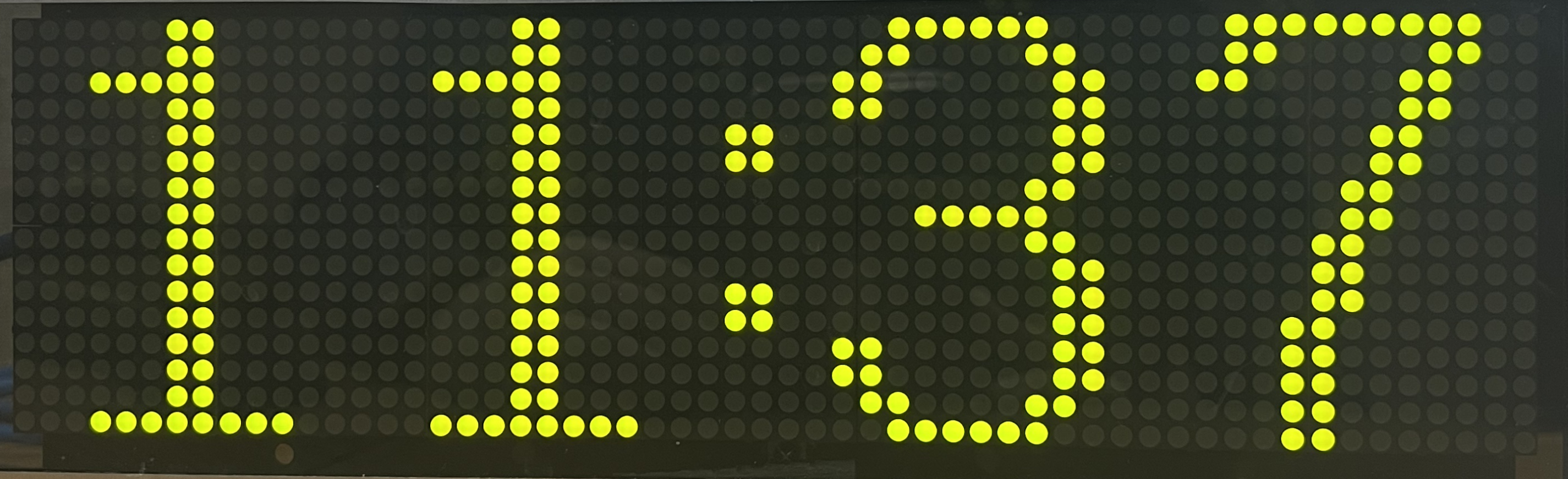 |
| Batang Condensed Narrow | clock_batang_narrow | 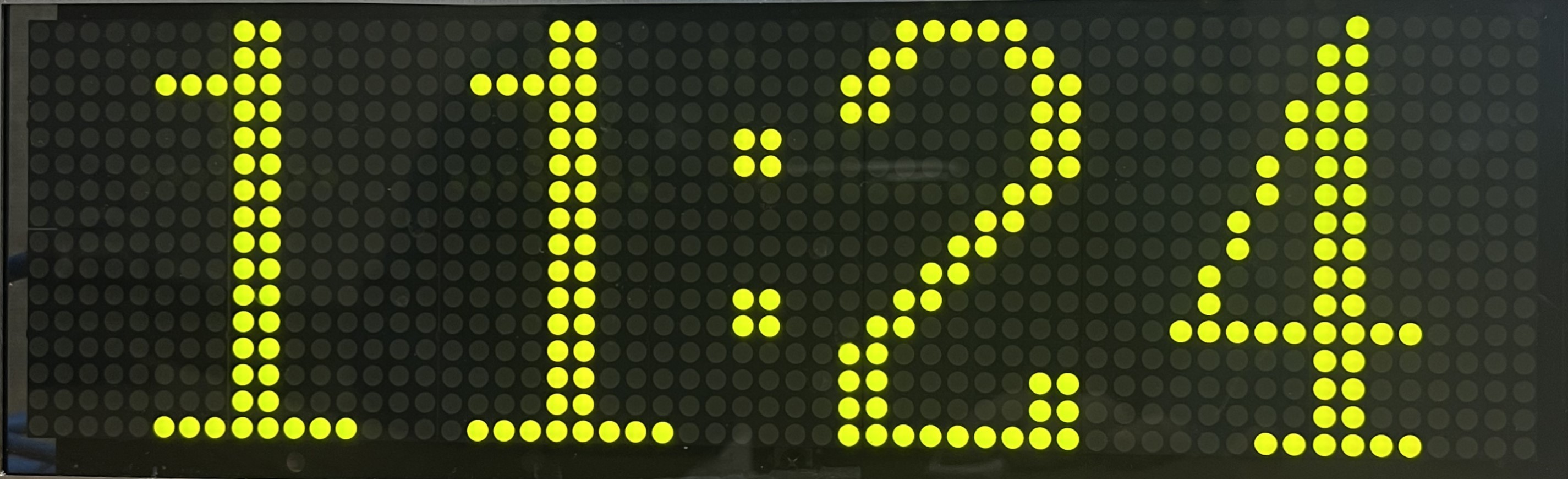 |
| Dotum Condensed | clock_dotum | 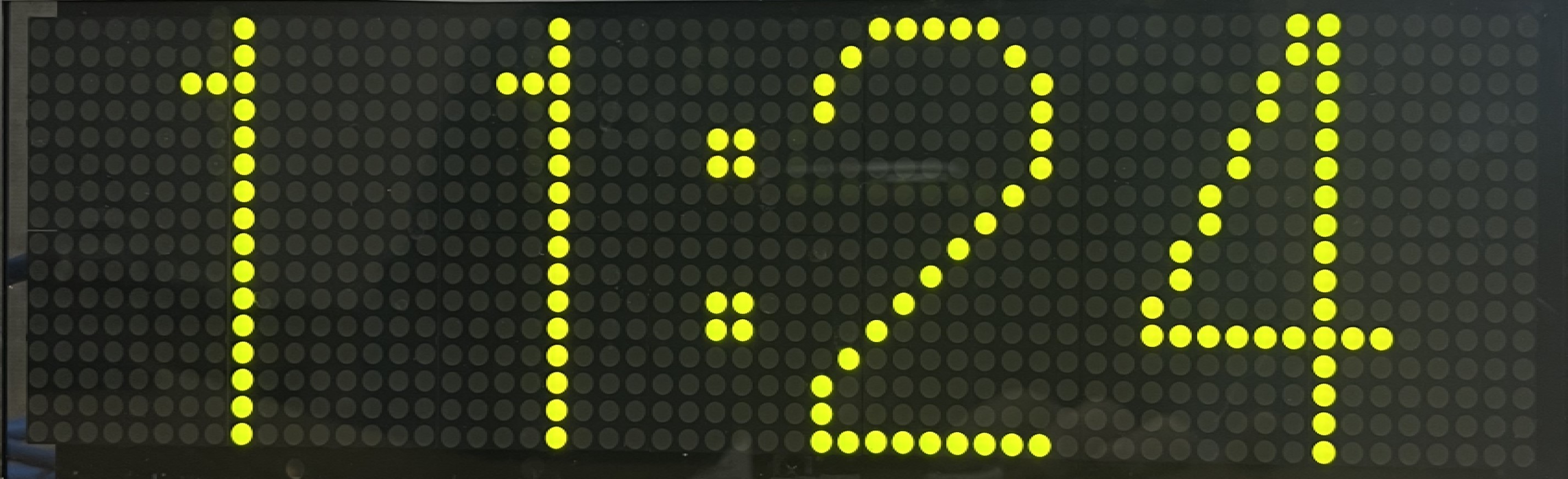 |
| Dotum Condensed Narrow | clock_dotum_narrow | 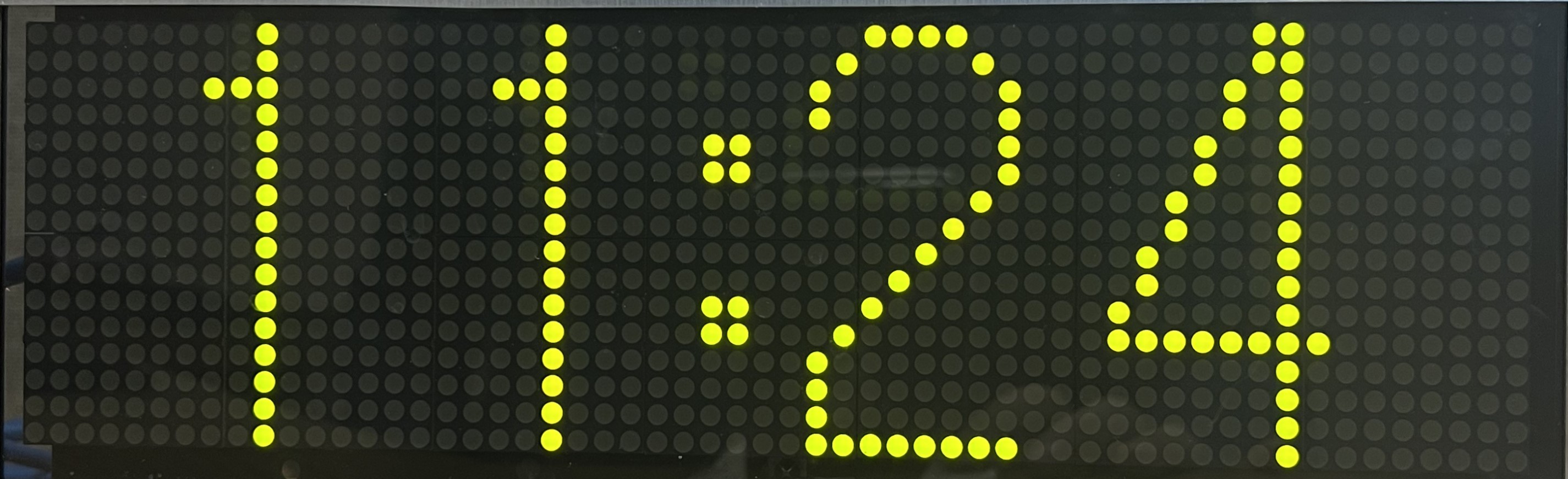 |
| Dotum Condensed Skinny | clock_dotum_skinny | 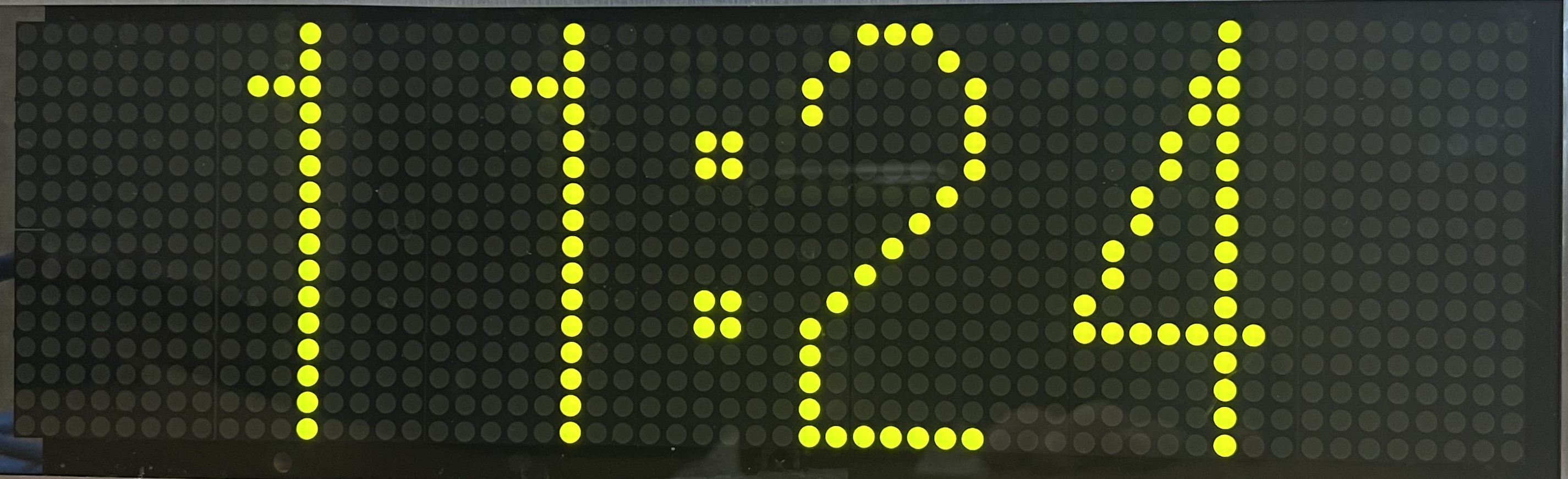 |
| Arial | clock_arial | 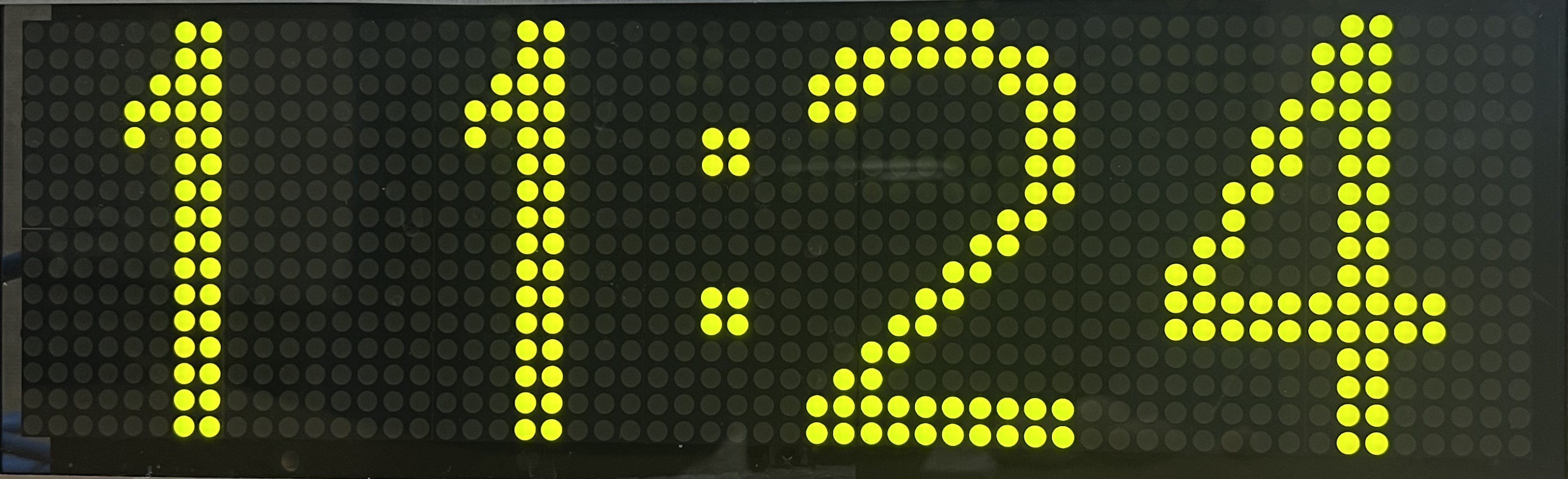 |
| Sans Serif | clock_sans_serif | 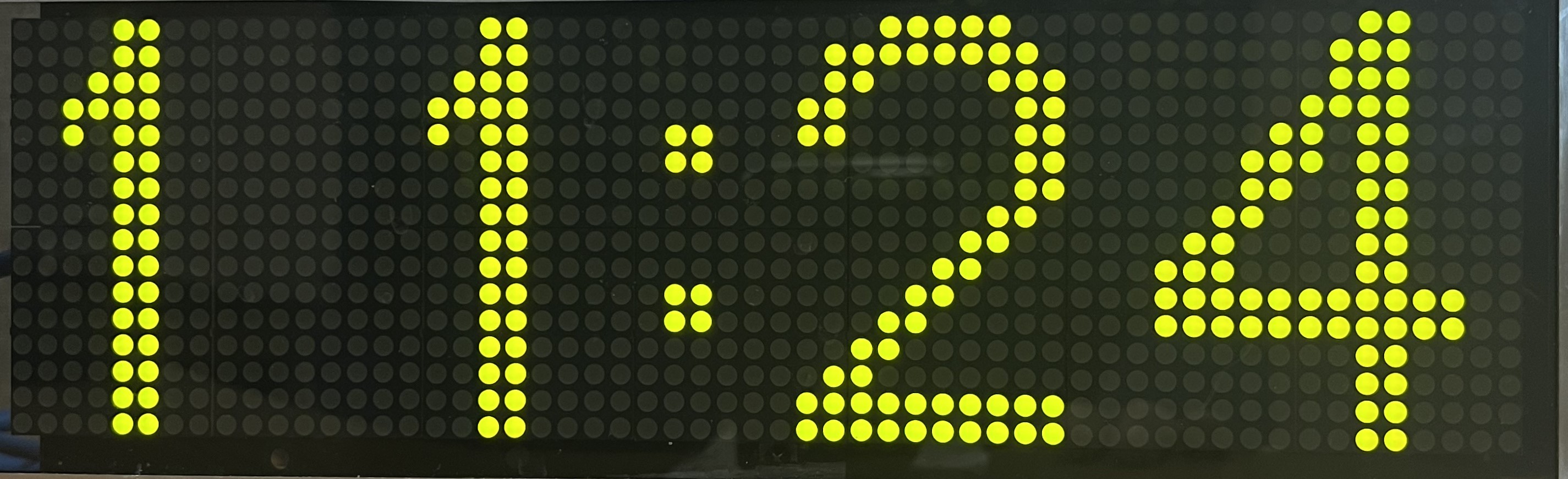 |
| Trebuchet | clock_trebuchet | 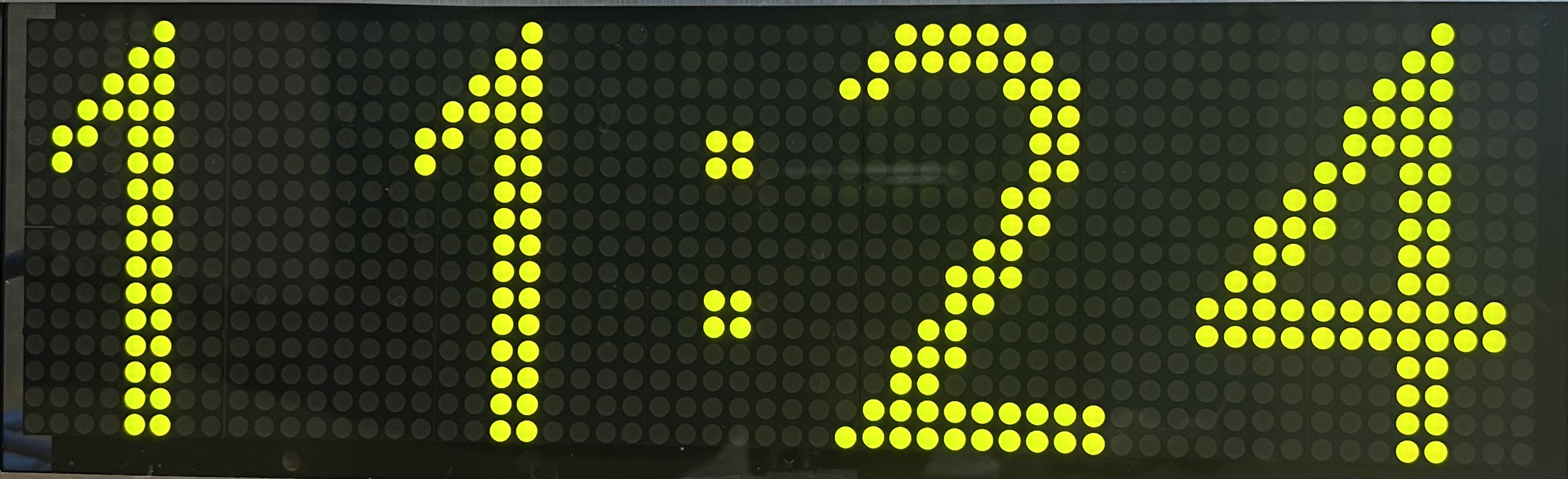 |
| Gungsuh | clock_gungsuh | 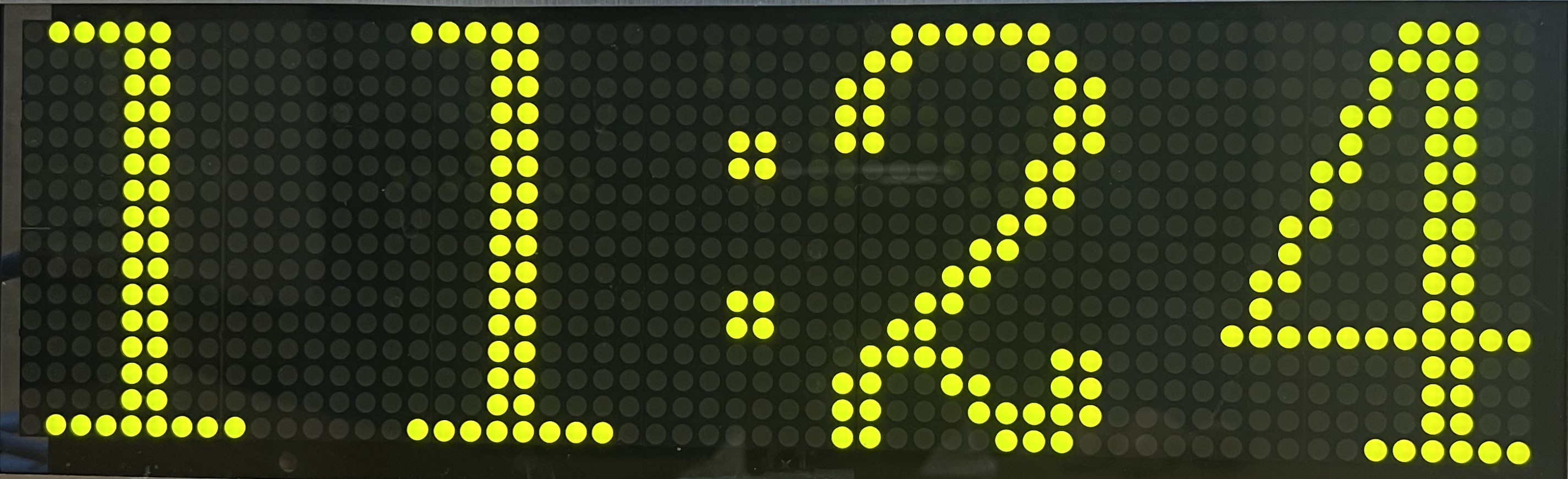 |
| David | clock_david | 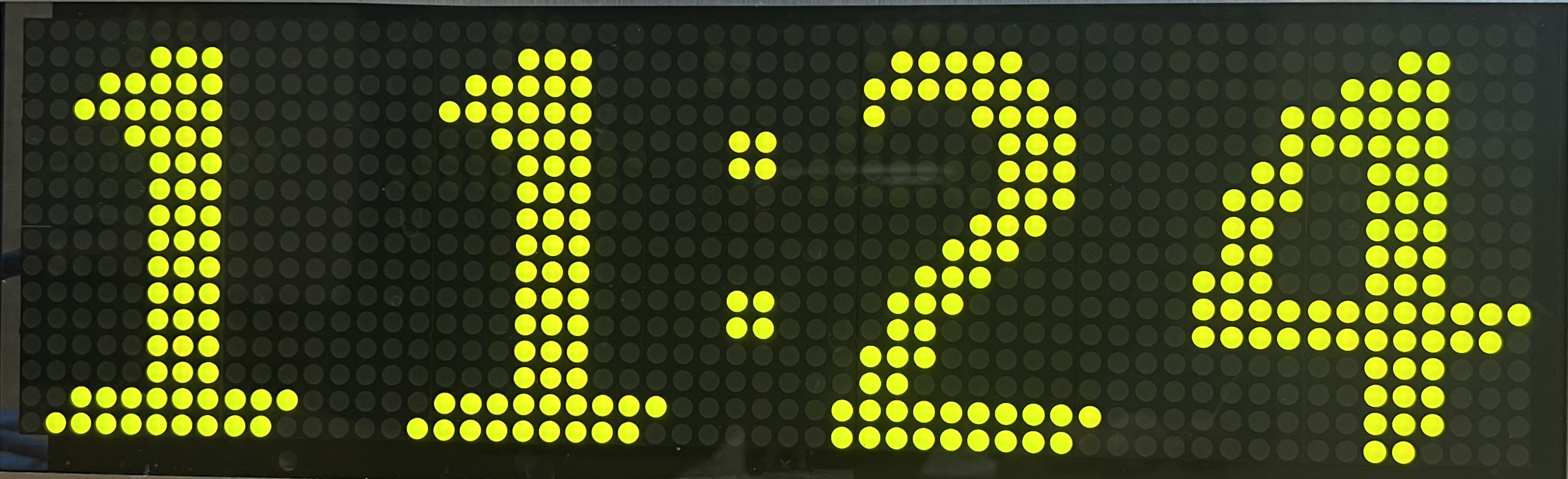 |
| David Narrow | clock_david_narrow |  |
| David Tall | clock_david_tall | 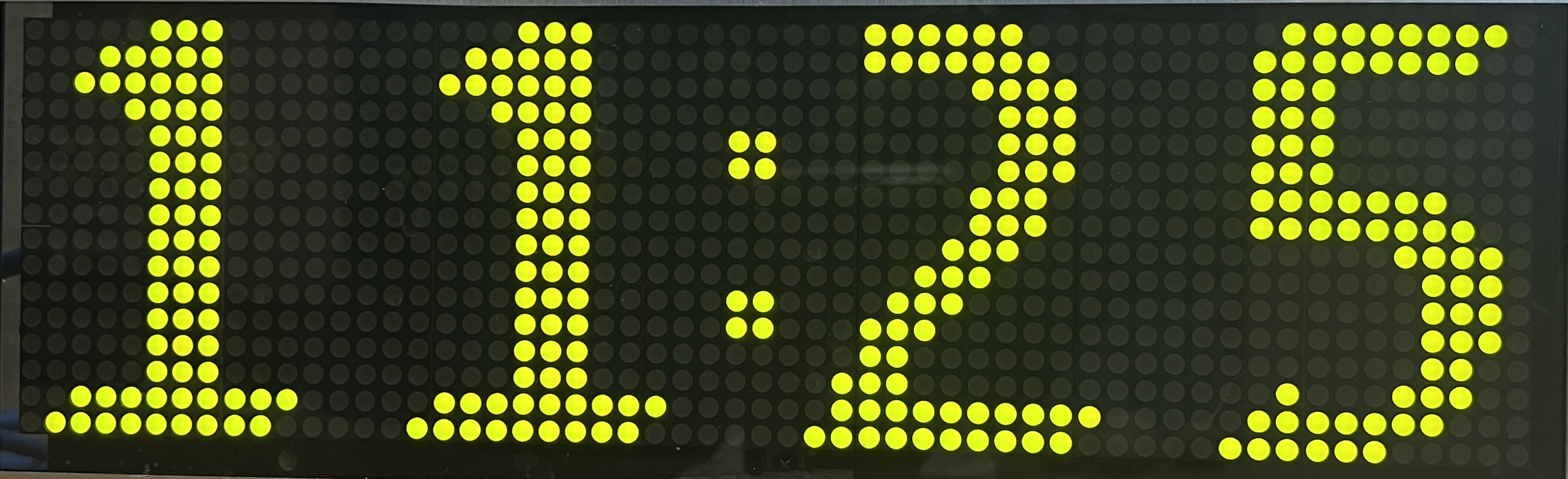 |
| David Extended | clock_david_extended | 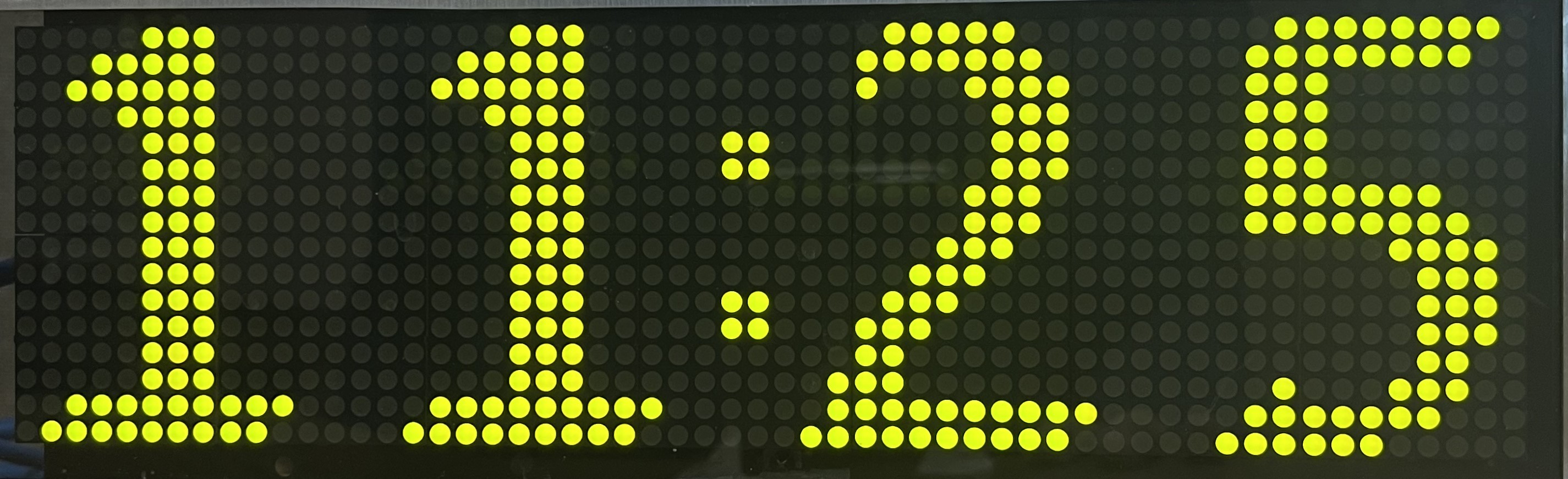 |
Retro 7
Bold | clock_retro_7_bold | 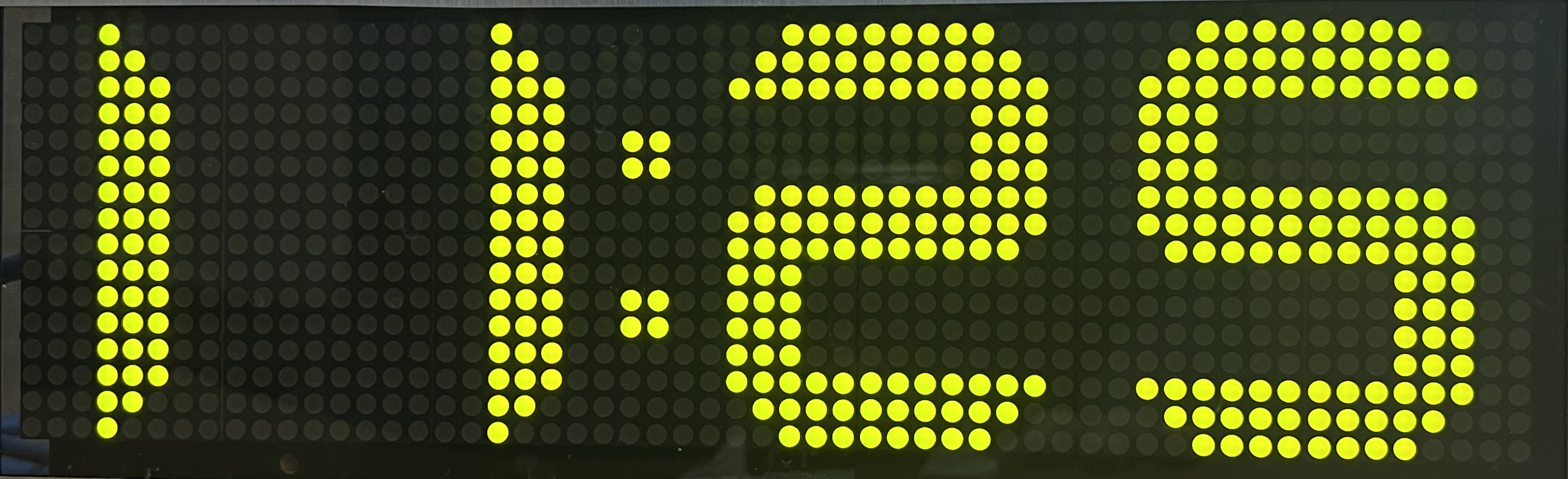 |
| Retro 7 | clock_retro_7 | 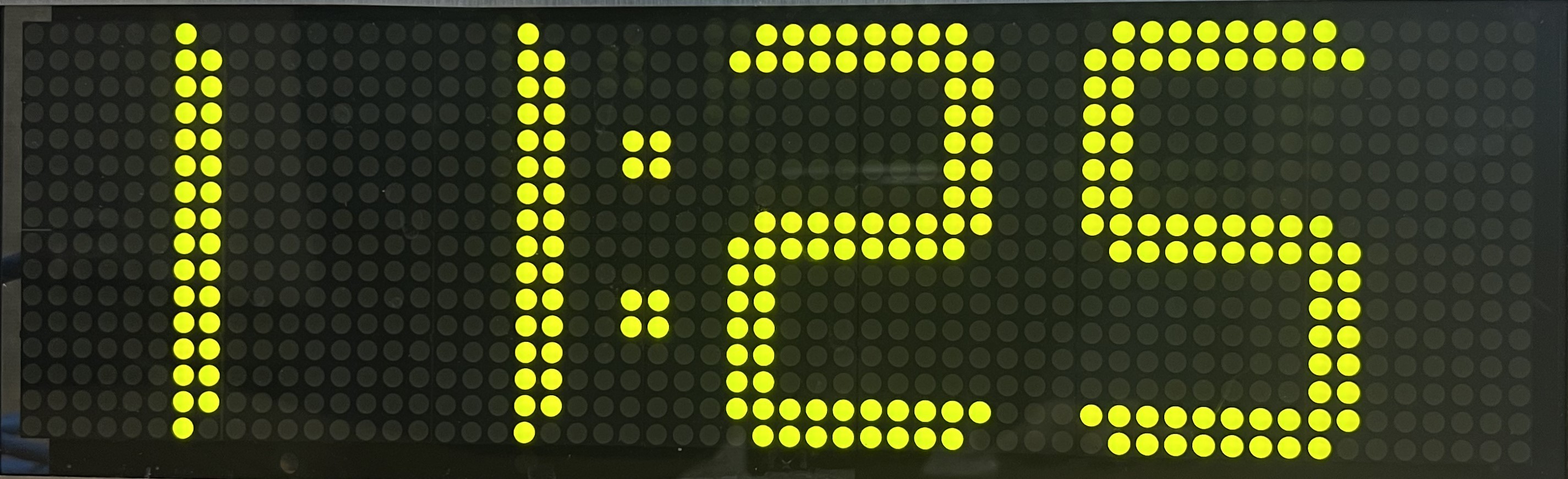 |
Retro 7
Narrow | clock_retro_7_narrow | 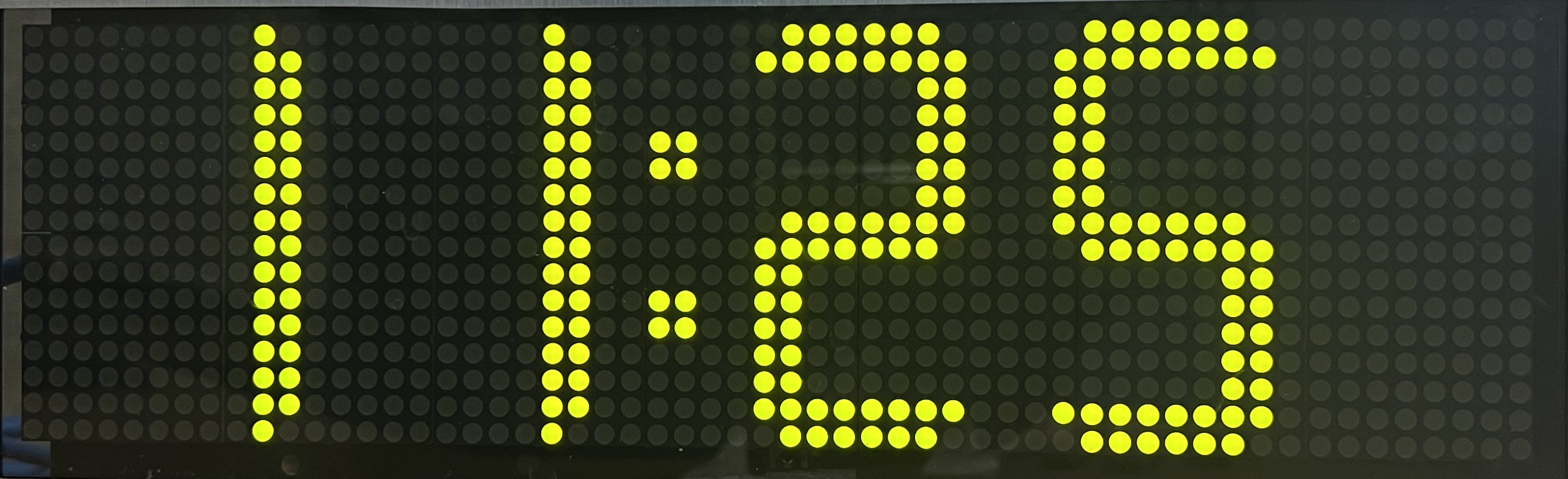 |
Retro 7
Skinny | clock_retro_7_skinny | 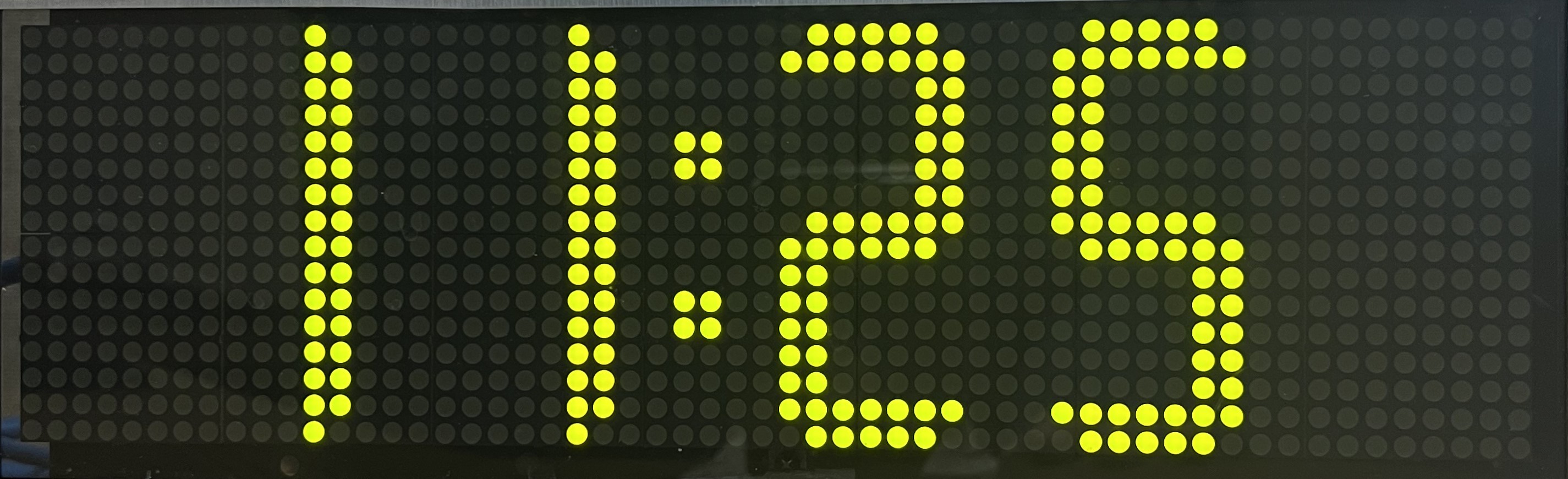 |
Small
(w/ date) | and_8high | 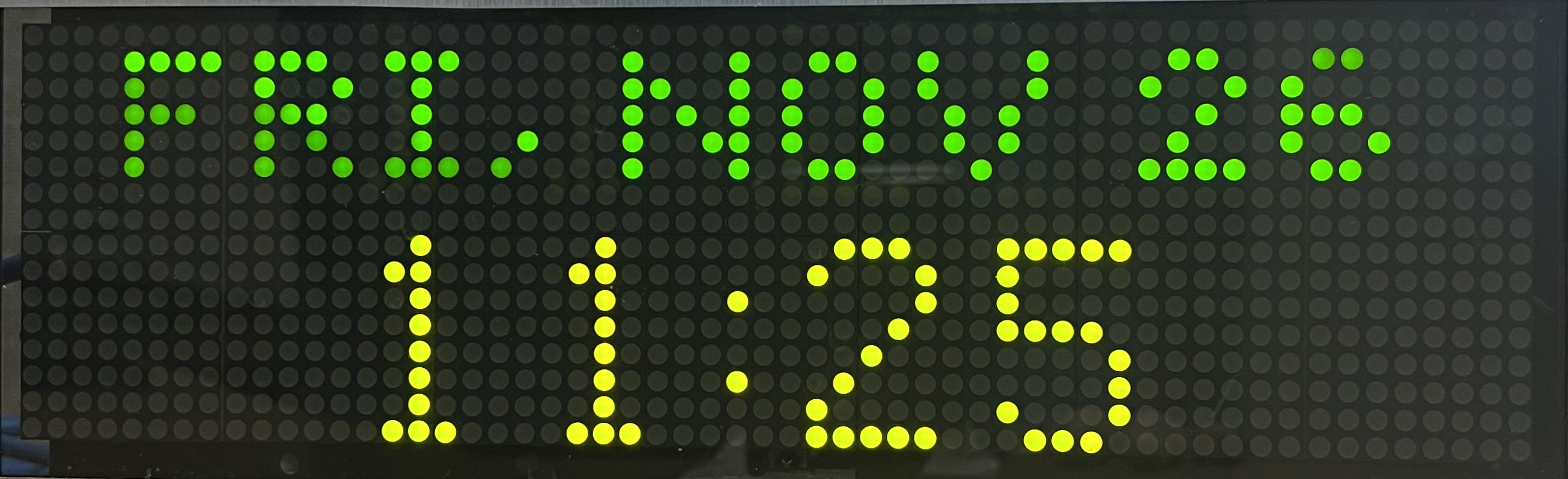 |
Smaller
(w/ date) | and_7high | 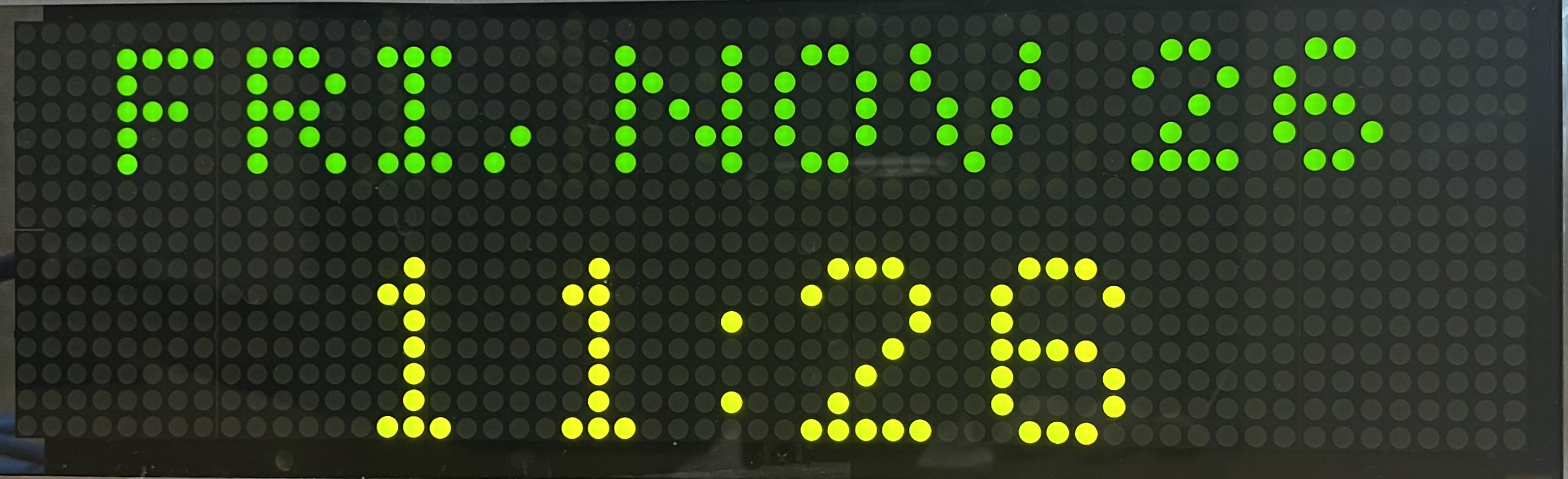 |
Tiny
(w/ date) | and_5high | 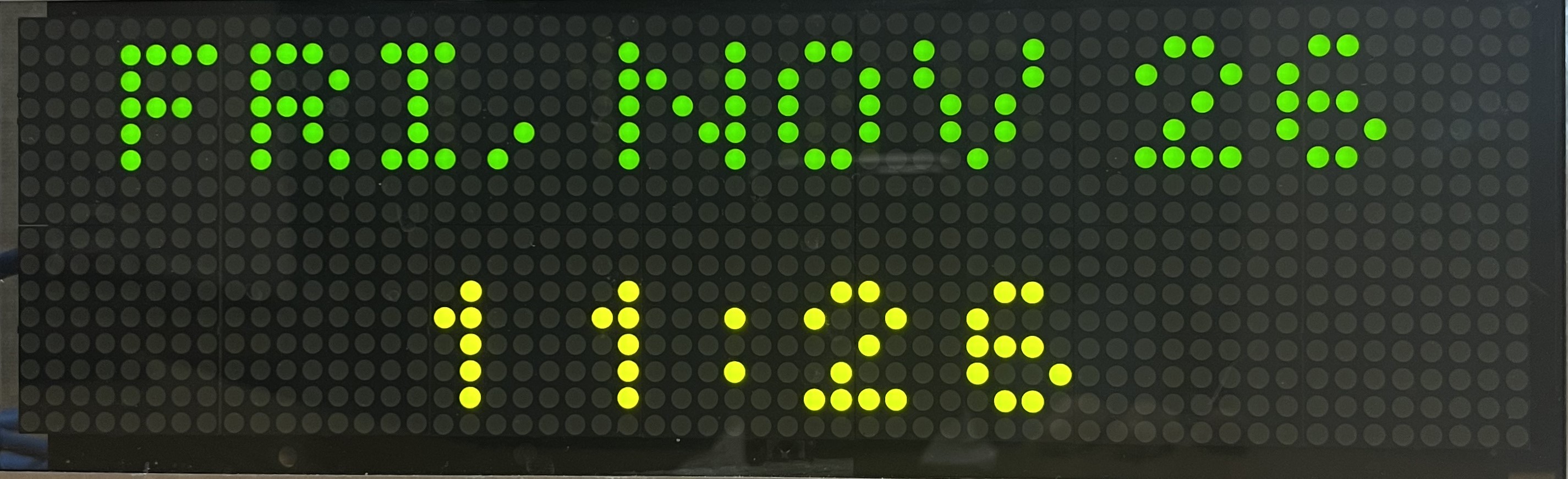 |
|
| Clock Color: Set the color of the hour and minute clock digits. |
| Seconds Color: Set the color of the seconds clock digits. |
| AM Color: Set the color of the AM designator. |
| PM Color: Set the color of the PM designator. |
| Date Color: Set the color of the date display. |
Date Format: When a 2-line capable clock font (small, smaller, or tiny) is selected, a static date is displayed, using "strftime" markup per the following table, e.g., "%a, %b %e" is displayed as "Wed, Nov 7".
| Parameter | Meaning | Example |
| %a | abbreviated name of the weekday | Mon |
| %A | full name of the weekday | Monday |
| %b or %h | abbreviated name of month | Jan |
| %B | full name of month | January |
| %m | two digit month | 01-12 |
| %d | two digit day of the month | 01-31 |
| %e | day of the month | 1-31 |
| %y | two digit year | 12 |
| %Y | four digit year | 2012 |
| %x | full date display | Sun Jan 01 2012 |
| %j | numeric day of the year | 001-366 |
| %u | numeric day of the week, one-based | 1-7 |
| %w | numeric day of the week, zero-based | 0-6 |
| %U | number of week, Sunday first | 00-53 |
| %W | number of week, Monday first | 00-53 |
|
| Date Shown as Tiny: Select "Yes" to display the date string in a 5 pixel high font instead of the default 7 pixel high font. |
| Clock Above Small Text: Select "Yes" to display the time above text messages, timers and/or the static date when the 2-line clock font (small, smaller, or tiny) is selected, otherwise the time is displayed below the text. |
| Minute Progress Critical Start Second: If non-zero, a minute progress bar will be displayed over the clock portion of the display. Set from 1-59 to indicate the first second within each minute to display the minute progress bar in the critical color. Set to 60 to only use the progress color, not the critical color. |
| Minute Progress Color: Set the color of minute progress bar. |
| Minute Progress Critical Color: Set the color of minute progress bar when it reaches the critical time period. |
Text Font: Select the font face of text messages. Select small, smaller or tiny to maintain time display during message display.
| Font | Config file
name | Example |
| Arial Bold | arial_bold | 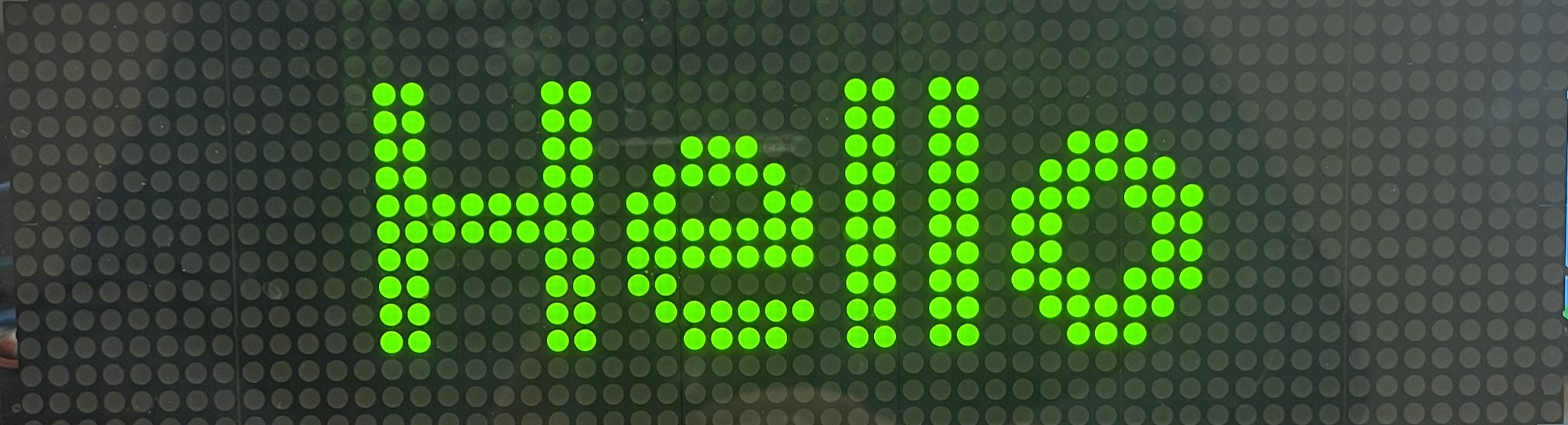 |
| Arial Huge | arial_huge | 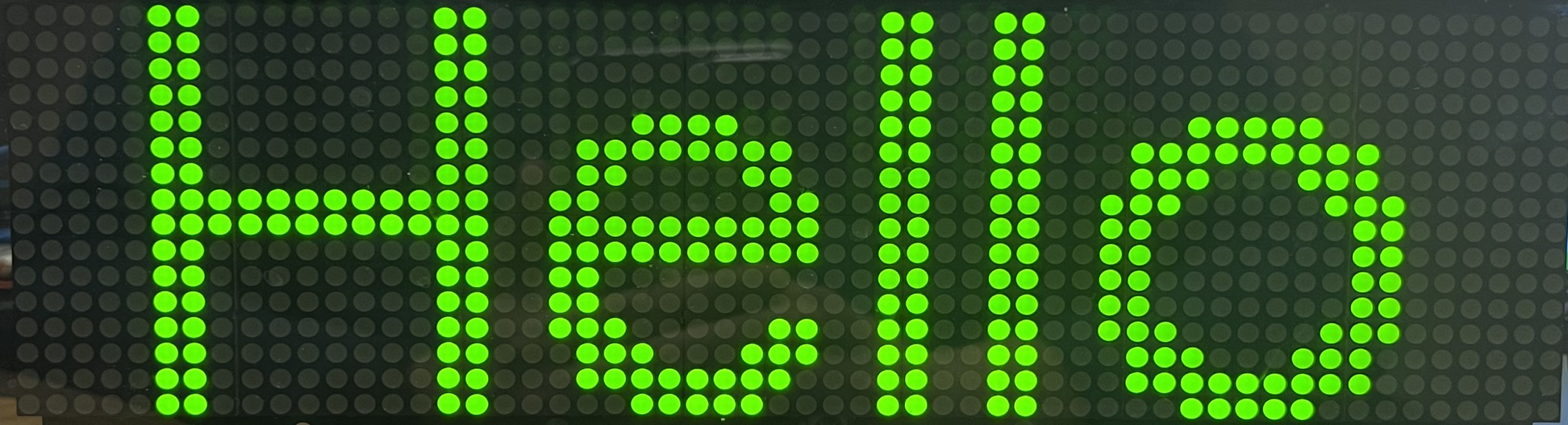 |
| Dotum | dotum |  |
| Dotum Bold | dotum_bold |  |
| Dotum Huge | dotum_huge |  |
| Dotum Bold Huge | dotum_bold_huge |  |
Small
(w/ clock) | and_8high | 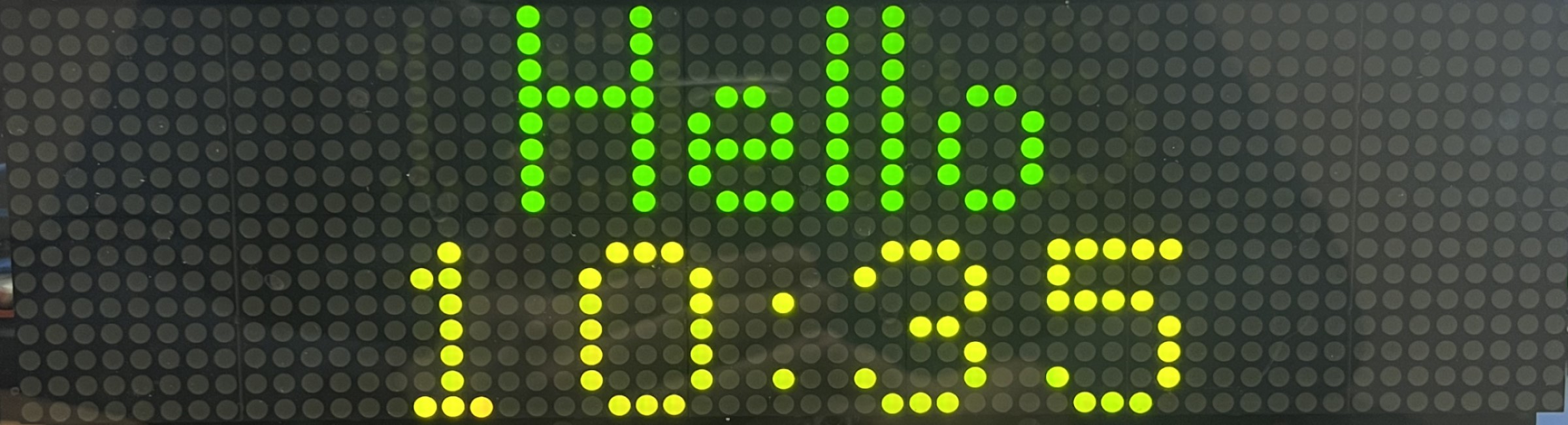 |
Smaller
(w/ clock) | and_7high | 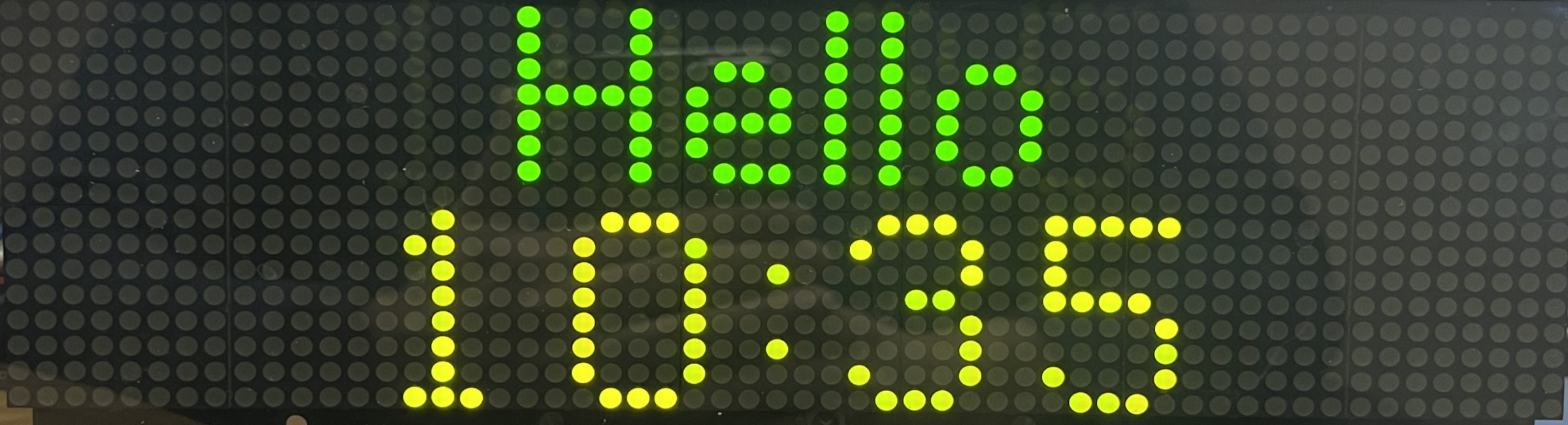 |
Tiny
(w/ clock) | and_5high |  |
|
| Text Color: Select the color of text messages. |
| Message Loops: Select the default number of scrolling text message loops. This will also control the number of times an on-board message repeats when triggered per the GPIO Input settings. This setting also controls how long a static SIP message (caller ID, etc.) is displayed, 5 seconds per loop. Default is 1. |
| Message Scroll Speed: Select the default scrolling speed of text messages. Available range is 1 to 10, with 1 being slowest and 10 being fastest. Default is 5. |
| Timer Font: Select the font face of timers. Select small, smaller or tiny to maintain time display during timer display. |
| Countdown Timer Color: Select the color of countdown timer. |
| Countdown Timer Critical Color: Select the color of countdown timer when it reaches the critical time period. |
| Count Up Timer Color: Select the color of count up timer. |
| Count Up Timer Critical Color: Select the color of count up timer when it reaches the critical time period. |
| Display Brightness: Controls the brightness of the LED display. 0 is the darkest (off), and 100 is brightest. "Automatic" will vary the brightness level based on ambient lighting, i.e., the darker the ambient lighting conditions, the dimmer the display will be. Note, brightness settings in the Scheduler will override this value. The IPSIGN-O does not suppport this feature. Default is Automatic. |
| Minimum Automatic Brightness: Controls the minimum brightness of the LED display when using the automatic brightness feature. 1 is the darkest and 100 is brightest. Default is 6. |
| Time Zone Display 1-4: Specifies the timezone name of the timezone to display on the device in place of local time. See the timezone list. Can add up to 4 timezones to display time from multiple time zones simultaneously. Standard width displays support two time zones, wider displays such as the IPSIGNL-RWB and IPSIGN-O support up to four. The order of the display is from left to right, i.e., time zone 1 is displayed furthest to the right. Entering the word "local" will show the local timezone as configured elsewhere in the device. |
| Time Zone Display 1-4 Description: Text label displayed to identify the respective time zone. Clock will display above the descriptions if "Clock Above Small Text" is set to "Yes". |
| Time Zone Display 1-4 Color: Color of the respective time zone and label. Use different colors for each time zone to differentiate the displayed zones. |
| Time Zone Display Descriptions Shown as Tiny: Select "Yes" to display the time zone descriptions in a 5 pixel high font instead of the default 7 pixel high font. |
| Background Image: Specify the image pixel data to display behind the clock time display as a background image. Use Clockwise to export pixmap images to this field. Contact AND tech support for more details at 847-463-2237 or email tech@anetd.com. |
| Background Image (animation): Specify the pixel data of a second image. This image will alternate with the first background image to create an animated effect. |
|
| Network Settings | |
| General Command Password: Sets the password associated with all HTTP commands and most SNMP accesses. When set using a configuration file, for security, the password can be removed from the file and will still be available and saved in non-volatile memory on the device. |
| HTTP Command Port: Allows HTTP commands to be received on the specified port in addition to the default port of 80. A value of 0 indicates only the default port 80 can be used. Note, port 80 can always be used for HTTP commands, regardless of this setting. |
| Configuration Search Path: The device will use this path to look for its configuration file. |
| SLP Scope: Set the SLP Scope. Default is Berbee Applications. |
| SLP Service: Set the SLP Service name. Default is InformaCastConfiguration. |
| 802.1X Username: Set the 802.1X username for this device. |
| 802.1X Password: Set the 802.1X password for this device. |
| Inhibit SLP: Select "Yes" to prevent the device from using SLP to find its configuration file. |
| Inhibit FTP: Select "Yes" to disable the device's FTP server. The FTP server is used to configure on-board sounds, messages, and images. |
| Inhibit Filesystem: Select "Yes" to prevent the device's filesystem from being accessible. The filesystem is used to store on-board sounds, messages and images. |
| Inhibit SNMP: Select "Yes" to prevent the device from using SNMP. |
| Inhibit Special Command: Select "Yes" to prevent the device from responding to the device information query from the Clockwise application. |
| Inhibit LLDP-MED and Voice VLAN: Select "Yes" to prevent the device from responding or sending LLDP-MED information; the device will instead use LLDP only. Manual VLAN tagging will not be possible when this is set to "Yes". |
| Restrict LLDP Request to PoE Level: Select "Yes" to restrict the device's LLDP Request to POE's 15.4W power level maximum. Default is "No", and device will request the maximum power available, up to 30W. |
| Use System Description in LLDP: By default, device will use a LLDP system name of IPSPKR followed by the device MAC address, e.g., "IPSPKR2046f9040506". Select "Yes" to use the SIPConfig descr contents instead. |
| Inhibit MDNS Host Lookup: Select "Yes" to prevent the device from registering the specified MDNS parameter. |
| Inhibit MDNS HTTP Service: Select "Yes" to prevent the device from registering the specified MDNS parameter. |
| Inhibit MDNS IP Speaker Service: Select "Yes" to prevent the device from registering the specified MDNS parameter. |
| Inhibit MDNS SNMP Server: Select "Yes" to prevent the device from registering the specified MDNS parameter. |
|
| Device IPv4 Address Settings | |
| Network Mode: The device will use this mode to determine its IP address. DHCP is the default mode, in which the device will attempt to get an IP address assigned by the detected DHCP server. If set to "Static IP", the network settings specified in this section will be used. If set to "None", only the IPv6 address settings will be used. |
| IP Address: The IP address to assign to the device if in static IP mode. |
| Netmask: The netmask to use in static IP mode. |
| Gateway: The gateway to use in static IP mode. |
| TFTP Server: The TFTP server to use in static IP mode. |
| DNS Server: The DNS server to use in static IP mode. |
| Domain: The domain to use in static IP mode. |
|
| Device IPv6 Address Settings | |
| Network Mode: The device will use this mode to determine its IPv6 address. Link-Local is the default mode, in which the device will use its MAC address to generate its IPv6 address in the format [fe80::2246:f9ff:feXX:XXXX] where XX:XXXX is the last 6 digits of the MAC address. This address is always available regardless of the network mode setting. If set to "Static IPv6", the network settings specified in this section will be used. If set to "Auto", the device will attempt to obtain a IPv6 address via router advertisement. |
| IP Address: The IP address to assign to the device if in static IP mode. |
| Prefix Length: The prefix length to use in static IP mode. |
| Gateway: The gateway to use in static IP mode. |
| DNS Server: The DNS server to use if not in Link-Local mode. Can be an IPv6 or IPv6 address. |
| Domain: The domain to use if not in Link-Local mode. |
|
| SNMP Settings | |
| SNMP Read Community: Specifies the password used to access the device's read-only SNMP variables. By default, the device will also accept the HTTP control password, general command password, or server registration-provided password to access read-only SNMP data. |
| SNMP Write Community: Specifies the password used to set the device's SNMP variables. By default, the device will also accept the general command password or server registration-provided password to set the device's SNMP variables. |
| SNMP MIB-2 Alternate Read Community: Specifies the password used to access the device's standard MIB-2 SNMP variables. Default value is "public". |
|
| SNMP Trap Manager Settings | |
| Host:Port Specifies the IP address, and optionally the port, of the SNMP manager(s) listening for SNMP notifications (traps) from this device. If not specified, the device will use a default value of 162 for the port. |
| Trap Community Name Specifies the password used to access the device's traps. |
| Trap Version Specifies the version of the SNMP manager handling the trap notifications. |
|
| SIP General Settings | |
Note: SIP2 is a second SIP identity that allows the device to register to an additional SIP server with a unique set of SIP parameters.
SIP Mode:
| Mode | Description |
| Paging | (Default mode) Force existing calls to hang up and automatically accept a new call when new INVITE occurs. |
| Intercom | Do not accept a new INVITE if the device is already in a call, and return a busy signal to the second caller. |
| Phone | Does not automatically pick up and requires input via IR (set Use IR Remote to "Yes") or GPIO (set GPIO Control of Non-GPIO Calls to "Yes") to accept (# button on the remote or input 1 button press) or reject (* button on the remote or input 0 button press) the INVITE. The device will play a ringing audio tone during this time. |
| Button | Does not accept incoming SIP calls. |
Default is Paging mode. |
| Promiscuous Mode: If set to "Yes", the device will respond to SIP transactions from any IP address. This is required for the Push-to-talk option. If set to "No", the device will only accept commands from the server. |
| Extension: Numeric extension to be assigned to this device for dialing purposes. |
| SIP Server: IP address or Fully Qualified Domain Name (FQDN) of the SIP server. The device will attempt to register with this SIP server at boot up and re-register every Registration Interval seconds. |
| SIP Domain: Used as the domain in SIP transactions. This is needed if the SIP server requires a specific value for the domain portion of the SIP URL that is different than the SIP server address. If not specified, the SIP Server field will be used as the domain. |
| SIP Password: The device will use this password during registration. |
| SIP Digest Username: The device will use this digest username during registration, if digest user authentication is required by the server. |
| SIP Port: Port of the SIP server. Default is 5060. |
| Server Connection Type: Connection type to use for SIP transactions. Note, when using TCP, the device will attempt to connect to the server, but will not listen for connections from the server. Default is UDP. |
| Registration Interval: The device will attempt to register with the SIP server at this interval, in seconds. Sometimes servers will negotiate this interval to a set minimum value, so it may increase in that case. Default is 300 seconds. |
Reboot Interval: If non-zero, the device will reboot after the specified duration, in seconds, if it is unable to register with a SIP server.
|
| Registration Failures Send SNMP Trap: Specifies the number of consecutive registration failures that must occur before a registration failure trap is sent. The default value of 0 means the trap is disabled. |
| Audio Channel: Specifies the destination of the SIP audio when the device is configured in stereo output mode. Primary is the right channel output and Secondary is the left channel output. Default mode is to output to both channels. Only valid for normal quality audio (8kHz mu-law). |
| Audio Source: Specifies the source of the SIP audio returned to the caller, microphone or line-in. For additional Line-In settings, see the Line-In Audio Settings on the Audio page. |
| Microphone Replacement Filename: Set the filename of the on-board audio file to stream back to the caller instead of a microphone capture. (See App Note #48: Onboard Sound Playback) |
| Strict Direction Negotiation: Set to "Yes" to force device to negotiate the SIP call direction attributes based on the call information. Default is "No" which will set the call attributes to bi-directional mode, "sendrecv". |
| Use IR Remote: Set to "Yes" to use an IR remote for SIP Phone mode, in order to make and take SIP calls. Note this is only valid for the first SIP identity, not SIP2. See App Note #32: IR Remote Setup for details. |
| Rebroadcast Destination: Specifies the multicast IP address and port to rebroadcast incoming SIP audio to when it is received by this device. E.g., 226.2.3.4:22458 |
Ring Volume: Specifies the volume of the ringing tone. .5 is softest, 10 is loudest.
|
Ring Tone: Specifies the tone of the ring. In Paging and Intercom SIP Phone Modes, the ring tone is played once at the start of the call if the SIP Ring Tone Priority is set to an equal or higher priority than the SIP Stream Priority. If "None" is selected as the Ring Tone and the Ring Volume is non-zero, priority-based events such as LED flashers, etc. can still be activated during the ringing period based on the SIP Ring Tone Priority (even though no ringing audio will be heard at the device).
|
| Show Call State with Flashers: If set to "Yes", call status will be reflected in the LED flashers, if present. Flashers will blink while the device is dailing or ringing and go on steady when the call is in progress. |
| Show Call State on Clock Display: Select "Yes" to display a phone icon on the display when a SIP call is active. |
| Call State Icon Color: Specifies the color of the phone icon. |
| SIP Stream Priority: Specifies the priority level of SIP audio. 1 is highest priority, 100 is lowest priority. Default level is 50. |
| SIP Maximum Call Duration, seconds: Specifies the maximum call duration in seconds. If non-zero, the device will automatically end the call (hang up) after the programmed number of seconds. Default value is 0, no max call duration. |
| SIP Ring Tone Priority: Specifies the priority level of the ring tone audio. In Paging and Intercom SIP Phone Modes, this priority level must be equal to or higher than the SIP Stream Priority in order for the initial ring tone to be heard at the start of the call. 1 is highest priority, 100 is lowest priority. Default level is 51. |
| SIP Status Message Priority: Specifies the priority level of SIP call status messages, which are displayed during SIP calls. 1 is highest priority, 100 is lowest priority. Default level is 99. |
| Name/Description: In SIP2 only, specifies the description for this extension used by some SIP services, such as caller ID. The first SIP extension will use the primary description specified in Device Settings->General. The maximum length of the text is 32 characters. |
| SIP Stale Call Timeout: Specifies the number of seconds of no audio before a SIP call should be considered stale and automatically drop out. Defaults to 60 seconds of no audio. |
|
| SIP GPIO Input Action Settings | |
Push-to-Talk 1 (GPIO 0 Outgoing):
Option 1: Specifies the IP address, MAC address or SIP extension number of a device to connect to via SIP when the GPIO 0 input is actuated momentarily. Press GPIO 0 input to hang up the call, unless Push-to-Talk 1 Trigger Only is set (see below). Note, every two digits of a MAC address must be separated by a colon, e.g., 20:46:f9:03:01:02. The MAC address option is only available for AND devices. When calling an AND device, Promiscuous Mode must also be set to "Yes".
Option 2: Specifies a multicast address and port to broadcast microphone audio to for the duration of the GPIO 0 input activation, e.g., 232.9.10.11:23456. Note, Push-to-Talk 1 Alternate cannot be specified. In firmware release 1.5 and later, Polycom phone paging groups and PTT channels can also be specified using the syntax polycom_paging:8 and polycom_ptt:5, for example, respectively. See App Note #37: Using Polycom Phones with AND Devices for details. |
Push-to-Talk 1 Alternate (Hold):
Option 1: Specifies the IP address, MAC address or SIP extension number of a device to connect to via SIP when the GPIO 0 input is held for the specified Push-to-Talk 1 Alternate Hold Time or longer. The Push-to-Talk 1 Alternate Hold Time must be non-zero for this setting to be recognized. Note, every two digits of a MAC address must be separated by a colon, e.g., 20:46:f9:03:01:02. The MAC address option is only available for AND devices. When calling an AND device, Promiscuous Mode must also be set to "Yes".
Option 2: Specifies a multicast address and port to broadcast microphone audio to for the duration of the GPIO 0 input activation, e.g., 232.9.10.11:23456. In firmware release 1.5 and later, Polycom phone paging groups and PTT channels can also be specified using the syntax polycom_paging:8 and polycom_ptt:5, for example, respectively. See App Note #37: Using Polycom Phones with AND Devices for details. |
| Push-to-Talk 1 Alternate Hold Time: Specifies the duration in milliseconds that GPIO 0 input must be held for before triggering a call to the Push-to-Talk 1 Alternate destination. This time must be non-zero in order for the Push-to-Talk 1 Alternate action to be recognized. |
| Push-to-Talk 1 Trigger Only: Set to "Yes" to prevent subsequent GPIO 0 input activations from hanging up an existing call. The called side has to end the call. |
Push-to-Talk 2 (GPIO 1 Outgoing):
Option 1: Specifies the IP address, MAC address or SIP extension number of a device to connect to via SIP when the GPIO 1 input is actuated momentarily. Press GPIO 1 input to hang up the call, unless Push-to-Talk 2 Trigger Only is set (see below). Note, every two digits of a MAC address must be separated by a colon, e.g., 20:46:f9:03:01:02. The MAC address option is only available for AND devices. When calling an AND device, Promiscuous Mode must also be set to "Yes".
Option 2: Specifies a multicast address and port to broadcast microphone audio to for the duration of the GPIO 1 input activation, e.g., 232.9.10.11:23456. Note, Push-to-Talk 2 Alternate cannot be specified. In firmware release 1.5 and later, Polycom phone paging groups and PTT channels can also be specified using the syntax polycom_paging:8 and polycom_ptt:5, for example, respectively. See App Note #37: Using Polycom Phones with AND Devices for details. |
Push-to-Talk 2 Alternate (Hold):
Option 1: Specifies the IP address, MAC address or SIP extension number of a device to connect to via SIP when the GPIO 1 input is held for the specified Push-to-Talk 2 Alternate Hold Time or longer. The Push-to-Talk 2 Alternate Hold Time must be non-zero for this setting to be recognized. Note, every two digits of a MAC address must be separated by a colon, e.g., 20:46:f9:03:01:02. The MAC address option is only available for AND devices. When calling an AND device, Promiscuous Mode must also be set to "Yes".
Option 2: Specifies a multicast address and port to broadcast microphone audio to for the duration of the GPIO 1 input activation, e.g., 232.9.10.11:23456. In firmware release 1.5 and later, Polycom phone paging groups and PTT channels can also be specified using the syntax polycom_paging:8 and polycom_ptt:5, for example, respectively. See App Note #37: Using Polycom Phones with AND Devices for details. |
| Push-to-Talk 2 Alternate Hold Time: Specifies the duration in milliseconds that GPIO 1 input must be held for before triggering a call to the Push-to-Talk 2 Alternate destination. This time must be non-zero in order for the Push-to-Talk 2 Alternate action to be recognized. |
| Push-to-Talk 2 Trigger Only: Set to "Yes" to prevent subsequent GPIO 1 input activations from hanging up an existing call. The called side has to end the call. |
| GPIO Control of Non-GPIO Calls: Set to "Yes" to allow GPIO control to accept (GPIO input 1 activation) or drop/reject (GPIO input 0 activation) calls in Phone mode, or to end a phone-to-device call (GPIO input 0 activation). |
|
| SIP GPIO Output Control Settings | |
| Keypad GPIO 0 'On' Password: Specifies the number sequence used to activate GPIO output 0, when entered on a phone keypad during a SIP call on supported phones. |
| Keypad GPIO 0 'Off' Password: Specifies the number sequence used to deactivate GPIO output 0, when entered on a phone keypad during a SIP call on supported phones. |
| Keypad GPIO 0 'Transient' Password: Specifies the number sequence used to activate GPIO output 0 for a set duration defined by the GPIO 0 Transient Time, when entered on a phone keypad during a SIP call on supported phones. |
| GPIO 0 Transient Time: Specifies the duration of the GPIO 0 Transient activation, in milliseconds. |
| Keypad GPIO 1 'On' Password: Specifies the number sequence used to activate GPIO output 1, when entered on a phone keypad during a SIP call on supported phones. |
| Keypad GPIO 1 'Off' Password: Specifies the number sequence used to deactivate GPIO output 1, when entered on a phone keypad during a SIP call on supported phones. |
| Keypad GPIO 1 'Transient' Password: Specifies the number sequence used to activate GPIO output 1 for a set duration defined by the GPIO 1 Transient Time, when entered on a phone keypad during a SIP call on supported phones. |
| GPIO 1 Transient Time: Specifies the duration of the GPIO 1 Transient activation, in milliseconds. |
| Activate GPIO 0 During Active Call: Set to "Yes" to activate general purpose output 0 when a SIP call is active. |
| Activate GPIO 1 During Active Call: Set to "Yes" to activate general purpose output 1 when a SIP call is active. |
| Activate GPIO 0 When Ringing: Set to "Yes" to activate general purpose output 0 when a SIP call is ringing. |
| Activate GPIO 1 When Ringing: Set to "Yes" to activate general purpose output 0 when a SIP call is ringing. |
|
| Server Settings | |
Server URL: IP address or name, port, and directory (if applicable) of server to register with. Note the device can register with multiple servers concurrently.
| Server Type | Example Server URL |
| InformaCast | http://10.10.3.4:8081/InformaCast/admin?cmd=spkr |
| Syn-Apps | http://10.10.3.4:80/SA-Announce/Api/SAAnnounceApi.asmx/RegisterIpDevice? |
| IPcelerate | http://10.10.3.4:80/nipa/regSpeaker.jsp?type=ipspeaker |
| AND | http://10.10.3.4:8089 |
| AND_Exempt | http://10.10.3.4:8089 |
|
| Server Type: Specify the type of server the device is registering with. Types currently include InformaCast, CiscoPagingServer, Syn-Apps, IPcelerate, Cistera, and AND. The AND_Exempt server type is the same as the AND server type, but the device will not reboot if the registration fails. For older Syn-Apps' SA-Announce servers, use the following URL syntax: http://10.10.3.4:80/SA-Announce/Api/SAAnnounceApi.asmx/RegisterIpSpeaker? |
|
| GPIO Callback URL | |
| GPIO Callback URL: Specifies the URL to access when GPIO input 0 or 1 transitions occur. Max length 256 characters. |
|
| Microphone Statistics Callback URL | |
| Microphone Statistics Callback URL:Specifies the URL to access when the ambient noise level is above the Microphone Statistics Callback Trigger Level. |
|
| Misc. Server Options | |
| Server Registration Interval: If non-zero, the device will reboot after the specified duration, in seconds, if it is unable to register with one of the specified servers. |
| Server Registration Failures Send SNMP Trap: Specifies the number of consecutive registration failures that must occur before a registration failure trap is sent. The default value of 0 means the trap is disabled. |
| Server Registration Failure Reboot Option: When set to "Default", the device will reboot when server registration fails. Set to "SIP Failover" to prevent the device from rebooting when server registration fails, but is registered with a SIP server. Set to "Never" to prevent the device from rebooting even when server registrations fail. |
| Auto Syn-Apps Option 72 Servers: If set to "Yes", the device will register with the Syn-Apps SA Announce server indicated by DHCP Option 72, if found. The server registration interval to the Syn-Apps server will also be automatically set to 60 seconds, regardless of the value specified in the Server Registration Interval setting. |
| GPIO min update period: Amount of time, in milliseconds, that must elapse before the same GPIO input or output transition will be recognized as a new transition and thereby trigger a GPIO callback. Available range is 100ms to 2000ms (2 seconds). Default is 250ms. |
| Microphone Statistics Callback Trigger Level: When the microphone detects ambient noise above this level, microphone statistics will be sent to the Microphone Statistics Callback URL every second until the ambient noise level drops below the trigger level. Note, for reference, the current ambient noise level is displayed on the device's Home and Status pages, e.g., Level: mic=17.48. |
| Microphone Statistics Triggers Send SNMP Trap: If set to "Yes", a trap will be sent each time the ambient noise level goes above or below the Microphone Statistics Callback Trigger Level. |
| Informacast Capture Heartbeat Interval: The device will send a "heartbeat" message to the InformaCast server every specified number of seconds while the microphone is active. |
| Allow inline text commands with InformaCast: If set to "Yes", text broadcasts from InformaCast will be scanned for embedded commands, specified by curly-braces, e.g., {color=red;flashers=FFF}. (see App Note #49: Inline Text Message Markup for details) |
| Time Offset: If non-zero, the specified adjustment, in minutes, will be applied to the local time supplied by a server registration, such as Singlewire's InformaCast server. This number can be negative. Note this does not apply to time received via NTP or from a server registration supplying UTC time such as Clockwise - in those cases this parameter will be ignored. |
| Send GPIO Activations Only: Set to "Yes" to only send a GPIO callback when an input goes active, not when it goes inactive. |
| SNMP trap min update period: Amount of time, in milliseconds, that must elapse before the same SNMP trap will be recognized as a new trap. Available range is 100ms to 2 seconds. Default is 250ms. |
| SNMP Keepalive Trap Interval: If non-zero, the device will send a keepalive trap every specified number of seconds. Default is 0, disabled. |
|
| Firmware Settings | |
| Main Firmware: Name of main firmware file to be loaded at boot up. If the file is not found at the next reboot, the stored setting will be cleared out. |
| Firmware Location: Specify the URL of the TFTP or HTTP server and directory to search for the firmware files. |
|
| GPIO Input Settings | |
| GPIO Inputs are general purpose inputs that interface to external circuits and devices such as push buttons, amplifiers, sensors, strobes, etc. that allow response to stimuli outside of the device. |
| GPIO 0 Input Description: Text description to identify the general purpose input 0. The description can be read by a MIB browser and can also be used by the Clockwise application to trigger an event based on a match of the description text when a related trap is received. |
| GPIO 0 Input Inversion: Set to "Yes" to invert the logic of input 0. When the input is shorted, the input will be considered "off"; when the input is open, the input will be considered "on" or active. |
| GPIO 0 Detection Time: Specifies the time, in milliseconds, before input 0 is considered triggered, i.e., shorted. Any off/on/off transitions that occur for less than this duration will be ignored. Default is 15 ms. |
| GPIO 0 Removal Time: Specifies the time, in milliseconds, before input 0 is considered off, i.e., the length of the "on" time will be extended by this amount of time after input transitions to off. This value should be less than the push-to-talk hold time (if push-to-talk hold is non-zero) in order to function properly. |
| GPIO 0 Transitions Send SNMP Trap: Set to "Yes" to send a trap when input 0 transitions between off to on and on to off. |
| Activate GPIO 0 During GPIO 0 Input: Set to "Yes" to activate output 0 when input 0 is active. |
| Activate GPIO 1 During GPIO 0 Input: Set to "Yes" to activate output 1 when input 0 is active. |
| GPIO 0 Input Message Trigger File: Set the filename of the on-board message to playback on the device when input 0 is activated. The message will repeat per the number of loops specified in the Message Loops setting in the Display section. |
| GPIO 0 Input Audio Trigger File: Set the filename of the on-board audio file to playback on the device when input 0 is activated. (See App Note #48: Onboard Sound Playback ) |
| GPIO 0 Input Audio Trigger Priority: Set the priority of the on-board sound playback when input 0 is activated. Available range is 1 (highest) to 100 (lowest). Default is 50. |
| GPIO 0 Input Audio Trigger Volume: Set the volume of the on-board sound playback when input 0 is activated. Available range is 0.0 (off) to 12.0 (loudest). Default is 3.0 |
| GPIO 0 Input Audio Trigger IP:port: Set a multicast IP and port to stream the on-board sound to when input 0 is activated. |
| GPIO 1 Input Description: Text description to identify the general purpose input 1. The description can be read by a MIB browser and can also be used by the Clockwise application to trigger an event based on a match of the description text when a related trap is received. |
| GPIO 1 Input Inversion: Set to "Yes" to invert the logic of input 1. When the input is shorted, the input will be considered "off"; when the input is open, the input will be considered "on" or active. |
| GPIO 1 Detection Time: Specifies the time, in milliseconds, before input 1 is considered triggered, i.e., shorted. Any off/on/off transitions that occur for less than this duration will be ignored. Default is 15 ms. |
| GPIO 1 Removal Time: Specifies the time, in milliseconds, before input 1 is considered off, i.e., the length of the "on" time will be extended by this amount of time after input transitions to off. This value should be less than the push-to-talk hold time (if push-to-talk hold is non-zero) in order to function properly. |
| GPIO 1 Transitions Send SNMP Trap: Set to "Yes" to send a trap when input 1 transitions between off to on and on to off. |
| Activate GPIO 0 During GPIO 1 Input: Set to "Yes" to activate output 0 when input 1 is active. |
| Activate GPIO 1 During GPIO 1 Input: Set to "Yes" to activate output 1 when input 1 is active. |
| GPIO 1 Input Message Trigger File: Set the filename of the on-board message to playback on the device when input 1 is activated. The message will repeat per the number of loops specified in the Message Loops setting in the Display section. |
| GPIO 1 Input Audio Trigger File: Set the filename of the on-board audio file to playback on the device when input 1 is activated. (See App Note #48: Onboard Sound Playback ) |
| GPIO 1 Input Audio Trigger Priority: Set the priority of the on-board sound playback when input 1 is activated. Available range is 1 (highest) to 100 (lowest). Default is 50. |
| GPIO 1 Input Audio Trigger Volume: Set the volume of the on-board sound playback when input 1 is activated. Available range is 0.0 (off) to 12.0 (loudest). Default is 3.0 |
| GPIO 1 Input Audio Trigger IP:port: Set a multicast IP and port to stream the on-board sound to when input 1 is activated. |
|
| GPIO Output Settings | |
| GPIO Outputs are general purpose outputs that interface to external circuits and devices such as push buttons, amplifiers, sensors, strobes, etc. that allow control of stimuli outside of the device. |
| GPIO 0 Output Description: Text description to identify the general purpose output 0. The description can be read by a MIB browser and can also be used by the Clockwise application to trigger an event based on a match of the description text when a related trap is received. |
| GPIO 0 Output Inversion: Set to "Yes" to invert the reported logic of output 0. When the output is set "on" by the device firmware, the output will be inactive or off; when the output is set "off", the output will be "on" or active. |
| GPIO 0 Output Oscillation: Set to "Yes" to force output 0 to oscillate rapidly between the on and off states whenever output 0 is set "on" by the device firmware. Useful for signalling certain devices, such as the paging sensor input on Extron's PVS 305 switcher. |
| GPIO 0 Output (SNMP) Pulse Time: Specifies the length of time, in milliseconds, to activate output 0 when commanded to activate an output pulse via an SNMP set. |
| GPIO 0 Output Transitions Send SNMP Trap: Set to "Yes" to send a trap when output 0 transitions between off to on and on to off. |
| GPIO 0 Output On During Audio Message: Set to "Yes" to activate output 0 when any audio stream is playing back on the device, regardless of the priority level of the stream. |
| GPIO 0 Output On During Display Message: Set to "Yes" to activate output 0 when any display message is playing back on the device, regardless of the priority level of the message. |
| GPIO 0 Peripheral Power: Used with the AND-PIA peripheral board. Set the maximum power consumption, in milliwatts, of output 0. Choose this power budget level carefully in order to provide sufficient current to the external load while allowing enough power for proper operation of the main device. For loads requiring more than 1500 mW, a PoE+ power source is recommended, as this can provide up to 12000 mW (12 W) to the external load. |
| GPIO 1 Output Description: Text description to identify the general purpose output 1. The description can be read by a MIB browser and can also be used by the Clockwise application to trigger an event based on a match of the description text when a related trap is received. |
| GPIO 1 Output Inversion: Set to "Yes" to invert the reported logic of output 1. When the output is set "on" by the device firmware, the output will be inactive or off; when the output is set "off", the output will be "on" or active. |
| GPIO 1 Output Oscillation: Set to "Yes" to force output 1 to oscillate rapidly between the on and off states whenever output 1 is set "on" by the device firmware. Useful for signalling certain devices, such as the paging sensor input on Extron's PVS 305 switcher. |
| GPIO 1 Output (SNMP) Pulse Time: Specifies the length of time, in milliseconds, to activate output 1 when commanded to activate an output pulse via an SNMP set. |
| GPIO 1 Output Transitions Send SNMP Trap: Set to "Yes" to send a trap when output 1 transitions between off to on and on to off. |
| GPIO 1 Output On During Audio Message: Set to "Yes" to activate output 1 when any audio stream is playing back on the device, regardless of the priority level of the stream. |
| GPIO 1 Output On During Display Message: Set to "Yes" to activate output 1 when any display message is playing back on the device, regardless of the priority level of the message. |
| GPIO 1 Peripheral Power: Used with the AND-PIA peripheral board. Set the maximum power consumption, in milliwatts, of output 1. Choose this power budget level carefully in order to provide sufficient current to the external load while allowing enough power for proper operation of the main device. For loads requiring more than 1500 mW, a PoE+ power source is recommended, as this can provide up to 12000 mW (12 W) to the external load. |
| Always-On Peripheral Power: Set the maximum power consumption, in milliwatts, of any additional powered devices that are constantly powered, such as an IP camera. Choose this power budget level carefully in order to provide sufficient current to the external load while allowing enough power for proper operation of the main device. For loads requiring more than 1500 mW, a PoE+ power source is recommended, as this can provide up to 12000 mW (12 W) to the external load. |
|
| Flasher Settings | |
| Left Flasher Description: Text description to identify the left flasher. The description can be read by a MIB browser and can also be used by the Clockwise application to trigger an event based on a match of the description text when a related trap is receieved. |
| Left Flasher Transitions Send SNMP Trap: Set to "Yes" to send trap when the left flasher transitions between states (off, slow blink, fast blink or on). |
| Middle Flasher Description: Text description to identify the middle flasher. The description can be read by a MIB browser and can also be used by the Clockwise application to trigger an event based on a match of the description text when a related trap is receieved. |
| Middle Flasher Transitions Send SNMP Trap: Set to "Yes" to send trap when the middle flasher transitions between states (off, slow blink, fast blink or on). |
| Right Flasher Description: Text description to identify the right flasher. The description can be read by a MIB browser and can also be used by the Clockwise application to trigger an event based on a match of the description text when a related trap is receieved. |
| Right Flasher Transitions Send SNMP Trap: Set to "Yes" to send trap when the right flasher transitions between states (off, slow blink, fast blink or on). |
|
| Temperature Check Settings | |
| Controller Description: Text description to identify the controller's on-board temperature sensor. The description can be read by a MIB browser and can also be used by the Clockwise application to trigger an event based on a match of the description text when a related trap is received. |
| Controller Temperature High: High temperature limit of controller's on-board temperature sensor, in degrees Fahrenheit. When this limit is reached or passed, an SNMP trap can be sent. |
| Send SNMP Trap on Controller Temperature High: Set to "Yes" to send trap when the controller's on-board temperature sensor's high temperature limit is reached or passed. |
| Controller Temperature Low: Low temperature limit of controller's on-board temperature sensor, in degrees Fahrenheit. When this limit is reached or passed, an SNMP trap can be sent. |
| Send SNMP Trap on Controller Temperature Low: Set to "Yes" to send trap when the controller's on-board temperature sensor's low temperature limit is reached or passed. |
| Display Description: Text description to identify the display's on-board temperature sensor. The description can be read by a MIB browser and can also be used by the Clockwise application to trigger an event based on a match of the description text when a related trap is received. |
| Display Temperature High: High temperature limit of display's on-board temperature sensor, in degrees Fahrenheit. When this limit is reached or passed, an SNMP trap can be sent. |
| Send SNMP Trap on Display Temperature High: Set to "Yes" to send trap when the display's on-board temperature sensor's high temperature limit is reached or passed. |
| Display Temperature Low: Low temperature limit of display's on-board temperature sensor, in degrees Fahrenheit. When this limit is reached or passed, an SNMP trap can be sent. |
| Send SNMP Trap on Display Temperature Low: Set to "Yes" to send trap when the display's on-board temperature sensor's low temperature limit is reached or passed. |
| Thermistor/Rheostat Description: Text description to identify the first thermistor or rehostat sensor. The description can be read by a MIB browser and can also be used by the Clockwise application to trigger an event based on a match of the description text when a related trap is received. |
| Thermistor/Rheostat Type: Select the type of thermistor or rehostat connected. If using a thermistor that is not in the list, choose parametric and set the R and Beta values according to the manufacturer's specifications. R is the resistance in Ohms of the thermistor at 25 C. |
| Thermistor/Rheostat High Level: High temperature limit of the first thermistor sensor, in degrees Fahrenheit, or high resistance limit, in Ohms, of the first rheostat. When this limit is reached or passed, an SNMP trap can be sent. |
| Send SNMP Trap on Thermistor/Rheostat Value High: Set to "Yes" to send trap when the first thermistor or rehostat's high limit is reached or passed. |
| Thermistor/Rheostat Low Level: Low temperature limit of the first thermistor sensor, in degrees Fahrenheit, or low resistance limit, in Ohms, of the first rheostat. When this limit is reached or passed, an SNMP trap can be sent. |
| Send SNMP Trap on Thermistor/Rheostat Value Low: Set to "Yes" to send trap when the first thermistor or rehostat's low limit is reached or passed. |
| Rheostat Change Level: Amount of percentage change in the first rheostat's value required to trigger a SNMP trap. |
| Send SNMP Trap on Rheostat Value Change: Set to "Yes" to send trap when the first rheostat value changes by the change level percentage or more. |
| Thermistor/Rheostat 2 Description: Text description to identify the second thermistor or rehostat sensor (available on IPSIGNL-RWB and IPCDS-RWB models only). The description can be read by a MIB browser and can also be used by the Clockwise application to trigger an event based on a match of the description text when a related trap is received. |
| Thermistor/Rheostat 2 Type: Select the type of second thermistor or rehostat connected. If using a thermistor that is not in the list, choose parametric and set the R and Beta values according to the manufacturer's specifications. R is the resistance in Ohms of the thermistor at 25 C. |
| Thermistor/Rheostat 2 High Level: High temperature limit of the second thermistor sensor, in degrees Fahrenheit, or high resistance limit, in Ohms, of the second rheostat. When this limit is reached or passed, an SNMP trap can be sent. |
| Send SNMP Trap on Thermistor/Rheostat 2 Value High: Set to "Yes" to send trap when the second thermistor or rheostat's high limit is reached or passed. |
| Thermistor/Rheostat 2 Low Level: Low temperature limit of the second thermistor sensor, in degrees Fahrenheit, or low resistance limit, in Ohms, of the second rheostat. When this limit is reached or passed, an SNMP trap can be sent. |
| Send SNMP Trap on Thermistor/Rheostat 2 Value Low: Set to "Yes" to send trap when the second thermistor or rheostat's low limit is reached or passed. |
| Rheostat 2 Change Level: Amount of percentage change in the second rheostat's value required to trigger a SNMP trap. |
| Send SNMP Trap on Rheostat 2 Value Change: Set to "Yes" to send trap when the second rheostat value changes by the change level percentage or more. |
|
| Light Sensor Check Settings | |
| Light Sensor Description: Text description to identify the display's light sensor. The description can be read by a MIB browser and can also be used by the Clockwise application to trigger an event based on a match of the description text when a related trap is received. |
| Light Sensor Value High: High value limit of display's light sensor. When this limit is reached or passed, an SNMP trap can be sent. |
| Send SNMP Trap on Light Sensor Value High: Set to "Yes" to send trap when the display's light sensor's high value limit is reached or passed. |
| Light Sensor Value Low: Low value limit of display's light sensor. When this limit is reached or passed, an SNMP trap can be sent. |
| Send SNMP Trap on Light Sensor Value Low: Set to "Yes" to send trap when the display's light sensor's low value limit is reached or passed. |
|
| Analog Clock Control Settings | |
| Use GPIO 0 to control analog clocks: Set to "Yes" to make GPIO output 0 send clock correction signals at the appropriate times and durations to set and keep the correct time on an IBM/Simplex analog clock. See App Note #41: Master Clock Operation for details, including supported analog clock models. |
| Use GPIO 1 to control analog clocks: Set to "Yes" to make GPIO output 1 send clock correction signals at the appropriate times and durations to set and keep the correct time on an IBM/Simplex analog clock. See App Note #41: Master Clock Operation for details, including supported analog clock models. |
|
| Permanent Streams | |
| Permanent Streams are multicast addresses that a device will continually listen to for RTP audio packets and play them back automatically when received. |
| Priority: Priority level to playback the audio stream at. Available range of 1-100. 1 is highest priority; 100 is lowest priority. |
| Latency: Set to "Low" for critical applications, such as live voice reinforcement. |
| Volume: Set the volume level of the permanent stream. .5 is softest, 12 is loudest. A value of 0 is off. Set the volume to "Chime" to match the chime volume level setting. Set the volume to "Speaker" to match the configured default speaker volume, see the Speaker/Line-Out Volume setting. |
| Starting Tone: Set a starting tone to playback when the permanent stream starts. Volume level of the starting tone will match the volume level of the permanent stream. If set to "none", no starting tone will be played. "Default" plays back a default starting tone. |
| Audio Channel: Specifies the destination of the audio when the device is configured in stereo output mode. Primary is the right channel output and Secondary is the left channel output. Default mode is to output to both channels. Only valid for normal quality audio (8kHz mu-law). |
| IP:Port: Set multicast IP address and port, separated by a colon, that the device will be listening to for audio streams. |
| Source IP: If specified, the permanent stream must be sent from one of the listed source IP address(es), otherwise it is ignored. |
| Onboard Message: File name of an onboard XML file that contains scrolling text, pixmap graphic, image, and/or flasher information to display when the respective permanent stream receives audio data. See App Note #50. |
|
| Polycom PTT and Paging Network Setting | |
| AND devices support Polycom phones' audio streaming format and can subscribe to any number of Polycom PTT (Push-to-Talk) Channels and/or Paging Groups in order to playback those pages on the AND device's speaker. |
| Polycom Stream: The Polycom phones default to sending PTT channel and paging group broadcasts on the multicast stream 224.0.1.116:5001. If the address is changed on the phones for any reason, this stream value should be changed accordingly so that the AND device will still receive the audio. This stream is also used by the AND device to send microphone audio streams to Polycom PTT channels and paging groups when using the AND SIP push-to-talk feature configured for Polycom (see the SIP GPIO settings and App Note #37: Using Polycom Phones with AND Devices) |
|
| Polycom PTT and Paging Group Configuration | |
| Polycom PTT channels and paging groups are divided into three priorities: Normal, Priority, and Emergency, each of increasing priority. The following settings for each priority level can be configured: |
| Priority: The priority level itself can be modified to interact with other AND device messages and audio as desired within the AND priority levels 1-100. 1 is highest priority, 100 is lowest priority. |
| Volume: The volume level of the page playback. .5 is softest, 12 is loudest. |
| Paging Tone: The tone that plays over the speaker before any Polycom paging group audio stream received by the device. |
| Starting Tone: The tone that plays over the speaker before any Polycom PTT channel audio stream received by the device. |
| Ending Tone: The tone that plays over the speaker after any Polycom PTT channel or Polycom paging group audio stream received by the device. |
| The PTT channel and paging group number associated with the Priority and Emergency levels can also be changed. |
|
| Polycom PTT Channel Subscriptions | |
| There are 25 available channels to use for Polycom Push-To-Talk functionality. Check a box to subscribe the AND device to the respective PTT channel. When audio is sent out over a given PTT channel, it will be heard at all AND devices and Polycom phones subscribed to that channel. (Priority) and (Emergency) designates the respective channels that are selected in the configuration section above. AND devices are not subscribed to any PTT channels by default, but the device can subscribe to any number of channels. |
|
| Polycom Paging Group Subscriptions | |
| There are 25 available groups to use for Polycom group paging functionality. Check a box to subscribe the AND device to the respective group. When audio is sent out over a given paging group, it will be heard at all AND devices and Polycom phones subscribed to that group. (Priority) and (Emergency) designates the respective groups that are selected in the configuration section above. AND devices are not subscribed to any paging groups by default, but the device can subscribe to any number of groups. |
|
| Priority Option Settings | |
| Low Priority Ignore prevents low priority events (text or audio) from being displayed or played back on the device when the feature is active, based on the Low-Priority Ignore setting. |
| Low-Priority Ignore: Set to "Always" to always ignore text or audio events at priorities below (larger numerical value than) the Lowest Active Priority. Set to the desired "GPIO X Input Active" to only ignore events when the respective general purpose input is active. The default value of "Remote Only" allows control of the low priority ignore feature via the AND API only, such as IP ClockWise. |
| Lowest Active Priority: Lowest priority level to process. All lower priorities (larger numerical values) are ignored. Available range of 1-99. |
|
| Message and Audio Priorities | |
| Message Priorities defines up to 10 categories of text message or audio behavior, grouped according to the received priority level. If more groups are needed, a configuration file can be used to create up to 20 distinct ranges. For text messages that loop multiple times with a pause period specified between loops, the "During Gaps" settings applies during the period of time between the loops. "During Gaps" also corresponds to audio-only events. |
| Text Color: The text color to use at the given priority level. Valid for dual-color displays only. |
| Display Brightness Config Override: Specifies the brightness of the LED display. 0 is the darkest (off), and 100 is brightest. Will only be used if the brightness value is greater than the current brightness level, i.e., it cannot be used to dim the display, only to make it brighter. |
| Flasher Blink Rate: The rate to blink the LED flashers at, if present, when a message of the specified priority level is processed. Values can be On (continuously on, no blinking), fast (200ms on, 300ms off), slow (200ms on, 800ms off) and off. Firmware release 1.5 and later includes options to blink at slower rates: once every 2 seconds, once every 3 seconds, etc. up to 9 seconds. |
| Flasher Brightness: Sets the brightness level of the LED flashers, if present, when a message of the specified priority level is processed. Values can be bright, dim, very dim, and ultra dim. |
| GPIO Output: Determines if the respective general purpose output should be activated for the duration of the message display or audio playback. |
|
| Clock Chime Settings | |
| Chimes: Specifies the name of the chime sound library to playback on the quarter of the hour. Chimes sounds are stored in an on-board filesystem. See App Note #48: Onboard Sound Playback for details. |
| Chimes Priority: Specifies the priority level of the chime audio playback. 1 is highest priority and 100 is lowest priority. 55 is the default. |
| Chimes Multicast: Specifies a multicast IP address and port, separated by a colon, to send the chime audio to, e.g., 232.9.10.12:23458. AND devices listening on this multicast IP and port will playback the chime audio. |
|
| Schedule | |
| Ten periods are provided to divide up each day as desired. "No Change" means the current time period will retain the given setting of the previous time period. |
| Start at: Specifies the time that the settings of the respective row will take effect. The time periods should be listed in order from 1:00AM at the earliest to midnight. The sunrise and sunset times are auto-calculated by the device, but latitude, longitude and a named or POSIX timezone must be entered first. |
| Display Brightness: Controls the brightness of the LED display during this time period. 0 is the darkest (off), and 100 is brightest. "Automatic" allows the device to adjust the brightness level automatically based on ambient lighting, i.e., the darker the ambient lighting conditions, the dimmer the display will be. "Default" uses the default display brightness setting specified at the top of the schedule table display brightness column. Note, changing the default brightness level will replace the max brightness level configured on the General settings page. Default is Automatic. |
| GPIO0 Input Actions Active: Specifies whether general purpose input 0 is enabled or ignored (disabled) for this time period. |
| GPIO1 Input Actions Active: Specifies whether general purpose input 1 is enabled or ignored (disabled) for this time period. |
| Chime Volume: Specifies the volume of the chime sounds during this time period, if chimes are enabled. 0.0 is off, 12.0 is loudest. "Automatic" allows the chime volume to adjust automatically based on the ambient light level. The lower the ambient light level, the lower the chime volume. "Default" uses the default chime volume setting specified at the top of the schedule table chime volume column. Default is Automatic. |
|
|
 Device Settings Help